Quantcast
Channel: pic | Battery Guide
Viewing all 202 articles
Browse latest View live

Interfacing VFD with PIC Microcontroller

$
0
0

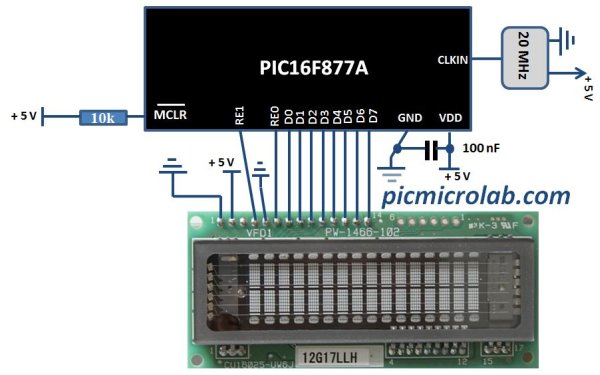
Vacuum fluorescent display can be a good alternative to a Liquid-crystal displays in some applications. They have a number of advantages over LCD like extended temperature range and excellent contrast in high brightness environment. The main disadvantage is higher power consumption making them less attractive in battery operated devices.Interfacing VFD with PIC Microcontroller In this post I’ll show you how you can use this type of display with microcontroller. You can purchase them on Ebay as I did here.CU16025 VFD module was used for this purpose as a direct replacement for 2×16 LCD display. Although the manufacturer of these modules provides some code examples I’ve used my own driver code (originally written for a LCD) and a parallel 8 bit connection to interface this display with PIC16F877A microcontroller. I’ve adapted assembly language subroutine that I wrote earlier for VFD module initialization and for sending data/command. The code was written in C in MPLAB X using XC8 compiler. The same subroutine was also used in VFD Voltmeter project. As you can see from the schematic below 2 PORTs were used to control the display. PORTD for data/command and PORTE for RS and Enable lines.Interfacing VFD with PIC Microcontroller schematich

The code consist of 3 main functions: Display initialization, WriteDataVFD , WriteCommandVFD. Command for example can be an address of one of the segments and data is the character you want to display in ASCII. Comments in the source code should provide you  with more detailed explanation on each instruction. Click here to download the code.


For more detail: Interfacing VFD with PIC Microcontroller

The post Interfacing VFD with PIC Microcontroller appeared first on PIC Microcontroller.


PIC Microcontroller project – 24 hour clock and thermometer displayed via 16f690 microcontroller and LCD programmed in C

$
0
0

I got to thinking that an interest in hi-fi can be a bit geek ( in a good way ) so I thought one of my latest geek projects might be of interest to some of you. You could build the project ‘as is’ without learning embedded C programming or you could use the project as a spring board to extra geekiness and weekend fun – I’ll leave that to you PIC Microcontroller project – 24 hour clock and thermometer displayed via 16f690 microcontroller and LCD programmed in C

Learning embedded C can be hugely rewarding and creative. The tool chain needed to get you started is either free (MPXLAB  IDE  and XC8 C compiler are both free downloads from the Microchip website and the pickit 3 needed to download compiled C code to your target microcontroller (16f690 in this case) is less than 50GBP.

You might be wondering why this project might be interesting to hi-fi enthusiasts. Well I have a few suggestions … the finished project will allow you to keep tabs on the temperature of your listening room via an LM35 temperature sensor, which is important not just for your own comfort, but electro-mechanical devices such as turntables, phono cartridges and loudspeakers or headphones perform best at temperatures that are comfortable to humans like you and me – 18 Celcius to 23 Celcius for example.

The other feature, the 24 hour clock is simply a clock as implemented at the moment, which is always useful in a gadget, but with additional software development could be used to time the hours of phono cartridge use, or if you have a valve amplifier the hours of valve usage. Either way it’s a great feature as it is and leaves further firmware development up to your imagination.

Here is a roughly drawn but accurate schematic circuit diagram and also the full C source code plus full build details – if you have any questions or queries please ask! Have fun…

Here is the finished prototype with a few changes in the firmware – degC now replaced with a more elegant representation, plus some fine adjustments to timer 1 overflow to fine tune the clock accuracy

Here’s a top view showing the sandwich construction of the thermo_timer – the front is a layer of 4mm clear acrylic, then brass pillars stand this off from the strip board circuit board. Another set of brass pillars then stand off the second layer of 4mm clear acrylic.

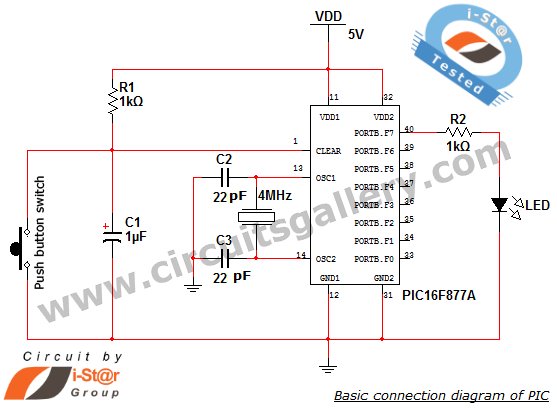
Here is the rear of the prototype which shows how simple the circuit really is – just a Microchip PIC 16f690, an LM35 temperature sensor which generates 10mV/ degree Centigrade, a contrast potentiometer for the LCD, and two push buttons to set hours and minutes of the clock.PIC Microcontroller project – 24 hour clock and thermometer displayed via 16f690 microcontroller and LCD programmed in C schematich

Schematic circuit diagram of 16f690 thermometer clock project

And here is the C source code for the clock thermometer project, which has been complied with the free Microchip XC8 C complier and downloaded to the 16f690 with Microchip MPLABX IDE. Feel free to copy and use/ enhance this code to learn more about the C language and the PIC range of Microcontrollers, as I did and am still doing  I’d be really pleased if you would link to this page if you find it helpful.


For more detail: PIC Microcontroller project – 24 hour clock and thermometer displayed via 16f690 microcontroller and LCD programmed in C

The post PIC Microcontroller project – 24 hour clock and thermometer displayed via 16f690 microcontroller and LCD programmed in C appeared first on PIC Microcontroller.

18 PIN PIC Development Board

$
0
0

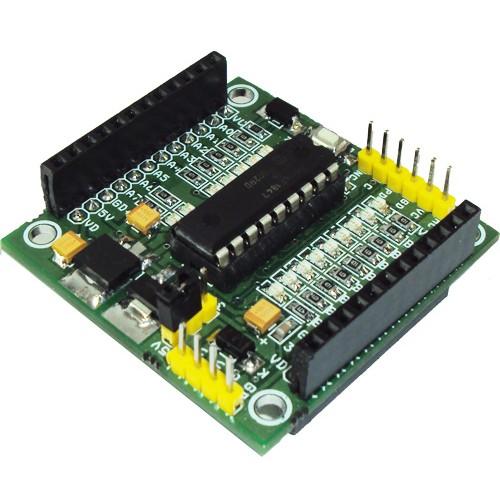
The PIC 18 PIN (DIP) Development / Evaluations Board demonstrates the capabilities of Microchip’s 8-bit microcontrollers, specifically, 18 Pin PIC16F1847. It can be used as a standalone demonstration board with a programmed part. With this board you can develop and prototype with all Microchip’s 18 PIN PIC microcontrollers. The board has a Reset switch and status LEDs. On board 3.3 V and 5V DC regulators allows using 3V and 5V PICs, This board support both 3.3V low power and normal 5V operation. All I/O Pins out with 2xfemale headers

18 PIN PIC Development BoardDevelopment Board Features:

  •     16 I/O Ports
  •     Onboard 5V and 3.3V Supply
  •     3.3V or 5V Supply selection by jumper
  •     Dual line I/O
  •     On board Power Indication
  •     On-board ICSP Port (PICKIT2 Standard Programming Port)
  •     Well labeled legends
  •     All outputs has provision for LEDs for output indication
  •     Replaceable PIC Microcontroller,
  •     Crystal and capacitor mounting under the PCB

PIC16F1847 Micro-Controller Specifications:

  • Enhanced Mid-range Core with 49 Instruction, 16 Stack Levels
  • Flash Program Memory with self read/write capability
  • Internal 32MHz oscillator
  • Integrated Capacitive mTouch Sensing Module
  • Data Signal Modulator Module
  • MI2C, SPI, EUSART w/auto baud
  • 2 ECCP & 2 CCP (Enhanced/Capture Compare PWM)
  • Comparators with selectable Voltage Reference
  • 12 Channel 10b ADC with Voltage Reference
  • 25mA Source/Sink current I/O
  • Four 8-bit Timers (TMR0/TMR2/TMR4/TMR6)
  • One 16-bit Timer (TMR1)
  • Extended Watchdog Timer (EWDT)
  • Enhanced Power-On/Off-Reset
  • Brown-Out Reset (BOR)
  • In Circuit Serial Programming (ICSP)
  • On Board In-Circuit Debug
  • Wide Operating Voltage (1.8V – 5.5V)
  • Low Power PIC16LF182x/4x variants (1.8V – 3.6V)
  • Standby Current (PIC16LF1847): 30 nA @ 1.8V, typical
  • Program Memory Type Flash
  • Program Memory (KB) 14
  • CPU Speed (MIPS) 8
  • RAM Bytes 1,024
  • Data EEPROM (bytes) 256
  • Digital Communication Peripherals 1-UART, 1-A/E/USART, 2-SPI, 2-I2C2-MSSP(SPI/I2C)
  • Capture/Compare/PWM Peripherals 2 CCP, 2 ECCP
  • Timers’ 4 x 8-bit, 1 x 16-bit
  • ADC 12 ch, 10-bit
  • Comparators 2
  • Temperature Range (C) -40 to 125
  • Operating Voltage Range (V)1.8 to 5.5
  • Pin Count 18
  • XLP Yes
  • Cap Touch Channels 12


For more detail: 18 PIN PIC Development Board

The post 18 PIN PIC Development Board appeared first on PIC Microcontroller.

Electronic Quiz Buzzer Circuit Diagram using PIC Microcontroller

$
0
0

Usually high level quiz competitions are very much time-oriented as it becomes significant to determine who has answered first. So here we’ll see how to make a buzzer system that helps to decide the winners.

Actually I designed this circuit of buzzer for quiz program conducted in our area and then I thought it may help someone, so I decided to introduce it here.Electronic Quiz Buzzer Circuit Diagram using PIC Microcontroller

This game show buzzer circuit uses PIC16F877A and a LED matrix to display who has pressed the button first. As soon as someone hits the button first, all other buttons are disabled helping to find the person or group which are ready to answer the question.

Read:LED Interfacing with PIC Microcontroller: Embedded C program with circuit

A reset button provided for the quiz master enables all the switches again for the next question. The led matrix helps to display the number in larger size and it’s designed to blink continuously. Buzzer will be ON for a second when anyone presses the button.

Components required

  1. PIC16F877A
  2. LED matrix 8×8
  3. Transistor BC548
  4. Resistor (1K,10Kx7,220)
  5. Capacitor(33pfx2)
  6. Crystal (12 MHz)
  7. LED Green
  8. Buzzer 5V(PCB Type)
  9. Push button x7

Quiz buzzer schematic working

  • LED matrix is connected through PORTB and PORTD of the microcontroller; cathode row is connected to PORTB and anode row is connected to PORTD.
  • When the power is ON, green LED starts to glow indicating that all switches are ready to press and LED matrix in blanked by sending PORTD=11111111 AND PORTB=00000000.
  • PIC microchip will continually scan the pins of PORTC to check if someone presses the button. It will check the next button only if the present button is not pressed.
  • While programming I had chosen the ‘if’ statement so as to avoid activation of two buttons at the same time by checking each pin from 0 to 7 of PORTC. Probability of this occurring is very low (And I know it’s a little bit unfair if that happens). The use of ‘case’ statements will check all the pins at the same time which may lead to activation of two buttons at a time.

Note:  You may also want to check out if-else statements in C programming.

  • The pins of PORTC is connected to +5V (pull up) through a 10K resistor, so if no one pressed the button PORTC gets 11111111 as default.
  • Pressing of any switch will make a short circuit to ground getting a logic zero at the corresponding pin of PORTC and so the program execution will enter into the sub function (loop) of the particular group number to display on the LED matrix.
  • Here I interfaced LED matrix directly to the PIC micro controller which makes the circuit simpler.
  • When the program execution enters in to any particular sub function(loop), it will enable the buzzer by sending a logic 1 to the 5th pin of PORTC and it send a logic 0 after 1 second (make beep sound of one second long).
  • Then enters in to the matrix loop, which scans each column with delay of 3 milli second.
  • PORTB sends the data corresponding to the column; higher scanning speed will make see the display as a number due to the persistence of vision of the eye.
  • Upon pressing the reset button, program execution will return to the main program.

Electronic Quiz Buzzer Circuit Diagram using PIC Microcontroller schematichQuiz buzzer program

The microcontroller code for this project is available at our Program Center.

I hope you like this quiz buzzer circuit diagram and let me know through the comment box below if you need any further assistance.


For more detail: Electronic Quiz Buzzer Circuit Diagram using PIC Microcontroller

The post Electronic Quiz Buzzer Circuit Diagram using PIC Microcontroller appeared first on PIC Microcontroller.

PIC Microcontroller Architecture and Applications

$
0
0

PIC microcontroller was developed in the year 1993 by microchip technology. The term PIC stands for Peripheral Interface Controller. Initially this was developed for supporting PDP computers to control its peripheral devices, and therefore, named as a peripheral interface device. These microcontrollers are very fast and easy to execute a program compared with other microcontrollers. PIC Microcontroller architecture is based on Harvard architecture. PIC microcontrollers are very popular due to their ease of programming, wide availability, easy to interfacing with other peripherals, low cost, large user base and serial programming capability (reprogramming with flash memory),  etc.

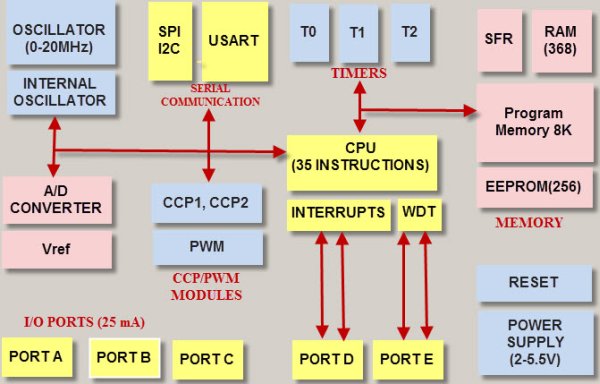
We know that the microcontroller is an integrated chip which consists of CPU, RAM, ROM, timers, and counters, etc. In the same way, PIC microcontroller architecture consists of RAM, ROM, CPU, timers, counters and supports the protocols such as SPI, CAN, and UART for interfacing with other peripherals. At present PIC microcontrollers are extensively used for industrial purpose due to low power consumption, high performance ability and easy of availability of its supporting hardware and software tools like compilers, debuggers and simulators.PIC Microcontroller Architecture and Applications

What is a PIC Microcontroller?

PIC (Programmable Interface Controllers) microcontrollers are the worlds smallest microcontrollers that can be programmed to carry out a huge range of tasks. These microcontrollers are found in many electronic devices such as phones, computer control systems, alarm systems, embedded systems, etc. Various types of microcontrollers exist, even though the best are found in the GENIE range of programmable microcontrollers. These microcontrollers are programmed and simulated by a circuit-wizard software.

Every PIC microcontroller architecture consists of some registers and stack where registers function as Random Access Memory( RAM) and stack saves the return addresses. The main features of PIC microcontrollers are RAM, flash memory, Timers/Counters, EEPROM, I/O Ports, USART, CCP (Capture/Compare/PWM module), SSP, Comparator, ADC (analog to digital converter), PSP(parallel slave port), LCD and ICSP (in circuit serial programming) The 8-bit PIC microcontroller is classified into four types on the basis of internal architecture such as Base Line PIC, Mid Range PIC, Enhanced Mid Range PIC and PIC18

Architecture of PIC Microcontroller

The PIC microcontroller architecture comprises of CPU, I/O ports, memory organization, A/D converter, timers/counters, interrupts, serial communication, oscillator and CCP module which are discussed in detailed below.

CPU (Central Processing Unit)

It is not different from other microcontrollers CPU and the PIC microcontroller CPU consists of the ALU, CU, MU and accumulator, etc. Arithmetic logic unit is mainly used for arithmetic operations and to take logical decisions. Memory is used for storing the instructions after processing. To control the internal and external peripherals, control unit is used which are connected to the CPU and the accumulator is used for storing the results and further process.

Memory Organization

The memory module in the PIC microcontroller architecture consists of RAM (Random Access Memory), ROM (Read Only Memory) and STACK.

Random Access Memory (RAM)

RAM is an unstable memory which is used to store the data temporarily in its registers. The RAM memory is classified into two banks, and each bank consists of so many registers. The RAM registers are classified into two types: Special Function Registers (SFR) and General Purpose Registers (GPR).

  • General Purpose Registers (GPR)

These registers are used for general purpose only as the name implies. For example, if we want to multiply two numbers by using the PIC microcontroller. Generally, we use registers for multiplying and storing the numbers in other registers. So these registers don’t have any special function,- CPU can easily access the data in the registers.

  • Special Function Registers

These registers are used for special purposes only as the name SFR implies. These registers will perform according to the functions assigned to them , and they  cannot be used as normal registers. For example, if you cannot use the STATUS register for storing the data, these registers are used for showing the operation or status of the program. So, user cannot change the function of the SFR; the function is given by the retailer at the time of manufacturing.

Read Only Memory (ROM)

Read only memory is a stable memory which is used to store the data permanently. In PIC microcontroller architecture, the architecture ROM stores the instructions or program, according to the program the microcontroller acts. The ROM is also called as program memory, wherein the user  will write the program for microcontroller and saves it permanently, and finally the program is executed by the CPU. The microcontrollers performance depends on the instruction, which is executed by the CPU.

Electrically Erasable Programmable Read Only Memory (EEPROM)

In the normal ROM, we can write the program for only once we cannot use again the microcontroller for multiple times. But, in the EEPROM, we can program the ROM multiple times.

Flash Memory

Flash memory is also programmable read only memory (PROM) in which we can read, write and erase the program thousands of times. Generally, the PIC microcontroller uses this type of ROM.

Stack

When an interrupt occurs, first the PIC microcontroller has to execute the interrupt and the existing process address. Then that is being executed is stored in the stack. After completing the execution of the interrupt, the microcontroller calls the process with the help of address, which is stored in the stack and get executes the process.

I/O Ports

  • The series of PIC16 consists of five ports such as Port A, Port B, Port C, Port D & Port E.
  • Port A is an 16-bit port that can be used as input or output port based on the status of the TRISA (Tradoc Intelligence Support Activity) register.
  • Port B is an 8- bit port that can be used as both input and output port.
  • Port C is an 8-bit and the input of output operation is decided by the status of the TRISC register.
  • Port D is an 8-bit port acts as a slave port for connection to the microprocessor BUS.
  • Port E is a 3-bit port which serves the additional function of the control signals to the analog to digital converter.PIC Microcontroller Architecture and Applications schematich

BUS

BUS is used to transfer and receive the data from one peripheral to another. It is classified into two types such as data bus and address.

Data Bus: It is used for only transfer or receive the data.

Address Bus: Address bus is used to transmit the memory address from the peripherals to the CPU. I/O pins are used to interface the external peripherals; UART and USART both are serial communication protocols which are used for interfacing serial devices like GSM, GPS, Bluetooth, IR , etc.


For more detail: PIC Microcontroller Architecture and Applications

The post PIC Microcontroller Architecture and Applications appeared first on PIC Microcontroller.

Automatic Temperature Control System using PIC Microcontroller – XC8

$
0
0

An automatic temperature control system has the ability to monitor and control the temperature of a specified space without human intervention. The primary purpose is to manage the temperature of a given area based on settings by a user of the system.Automatic Temperature Control System using PIC Microcontroller XC8

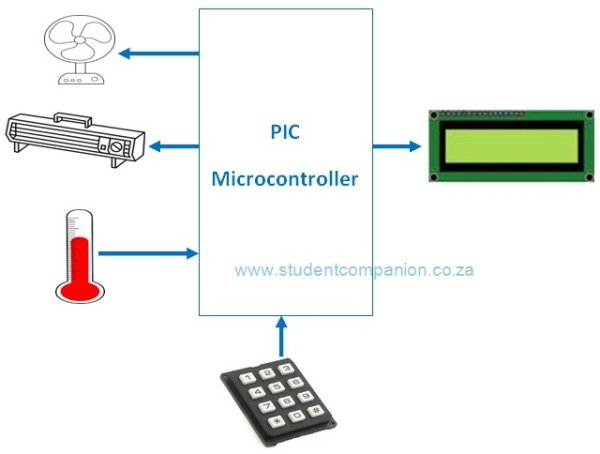
This project uses a PIC microcontroller to automatically control the temperature of an area. This area could be a small plant, a house or any place or device that require a controlled temperature like an incubator (egg) for example. Figure 1 shows the block diagram of the system to be designed. The desired temperature setting is entered using a keypad. The temperature of the area is measured using an analog temperature sensor, the LM35 precision integrated-circuit temperature sensor is used for this.

The microcontroller reads the temperature every 10 s and compares it with the desired value. If the desired value is higher than the measured value, then the heater is turned ON to heat the area. The heater is switched OFF once the desired temperature is reached. If on the other hand the measured value is higher than the desired value, then the fan is switched ON to cool off the area until the required temperature is reached. An LCD display shows the measured temperature continuously.

Figure 2 shows the circuit diagram of the project. The LCD is connected to PORTB. The LM35 precision analog temperature sensor chip is connected to the analog input pin AN0 (RA0). A 3×4 keypad is connected to PORTC. The ‘*‘ key of the keypad is used to clear the value entered during the temperature setup and the ‘#‘ key is used to ENTER (save) the setting. The heater and the fan are controlled using transistors and relays connected to pins RA1 and RA2 of the microcontroller respectively.Automatic Temperature Control System using PIC Microcontroller XC8 schematich

Note: The Terminals ratings of the relay should depend on the power of the Heater and the Fan. If you decide to use 220V Heater and Fan, use appropriate relays which can handle that voltage and current. The low voltage DC of the coil should be preferably 5V and with low current for the BC108 transistor to handle. Please observe the safety precaution as 220V is dangerous.


For more detail: Automatic Temperature Control System using PIC Microcontroller – XC8

Current Project / Post can also be found using:

  • temperature measurement project for students

The post Automatic Temperature Control System using PIC Microcontroller – XC8 appeared first on PIC Microcontroller.

PIC – First Project

$
0
0

Programming in PIC microcontroller can be done by using assembly language or by using Embedded C because of the ease of writing code.We have used done the programming through Embedded C language.For programming any microcontroller we need a IDE or Intregrated Developement Enviroment. In case of PIC microcontroller the official IDE is MPLAB  Further several third parties develop C language compilers for PICs, many of which integrate to MPLAB  or feature their own IDE.PIC  First Project A fully featured compiler for the PICBASIC language to program PIC microcontrollers is available from meLabs, Inc. Mikroelektronika offers PIC compilers in C.For the tutorial given on this website we have used MikroC, a  PIC C compilers from Mikroelektronika.The reason we used MikroC is because of its simplicity then again its my opinion.When we  build any program, a hex file is created. A hex file  is a format used to store machine language code in hexadecimal form. After creating the hex file , we use a programmer to burn the code onto the microcontroller for that we use Pickit2 programmer[for latest devices Pickit 3].The software can be downloaded from here

Steps for using MikroC IDE

Run MikroC  as administrator as shown in the figure [Note: MikroC and MikroC pro for PIC are different compilers.We have used MikroC in all our tutorials for PIC. Please don’t confuse it with MikroC pro].

A sub window will open .Implement the following things in it

  • Give a name to your Project [ Please don’t use names that are exactly same as the functions used in MikroC such as ‘main‘ or ‘for‘ ]
  • Select a suitable location[Please don’t select desktop or my documents  locations. Save inside a specific folder]
  • Select the device for which you want to write the code
  • Write down the value of clock in your hardware [I have used 20 MHz crystal oscillator  thats why  i wrote 20.000000]
  • Click on “Default” and Click on “OK“
  • Now a workspace will be created. Write your program in that area.
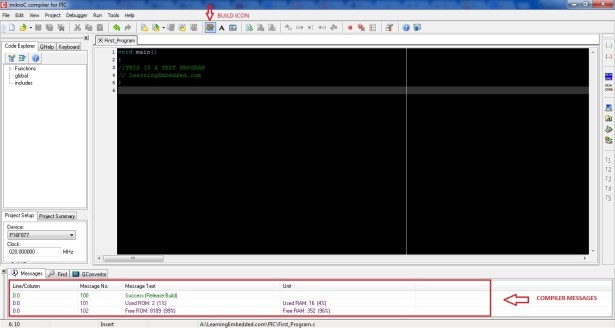
  • After completing your program, save it and click on the build icon as shown in the figure
  • If your program has no error then compiler will display a success message in the compiler messages area as shown in the figure above else the error messages will be displayed.Fix those errors(if any)
  • Hex file successfully created.PIC  First Project schematich

Steps to write your program to PIC microcontroller


Connect your PIC microcontroller to the PIC programmer.


  • Connect your PIC programmer to your computer.If you are connecting through your USB, you must first install this driver: PL2303
  • Download and Open Pickit 2 programmer software[Download Link].
  • If the device name is mentioned as shown in the figure below then it is successfully connected  .If not then check your connection and the programmer again.
  • Go to “File” in the menu and click on “Import Hex” and then go to the location where you have saved your MikroC project and select the .hex file  associated with your MikroC project.
  • After importing the .hex file change the VDD  PICkit 2 value to “5.0”  and click on “Write” as shown in the figure.


For more detail: PIC – First Project

The post PIC – First Project appeared first on PIC Microcontroller.

Low cost temperature data logger using PIC and Processing

$
0
0

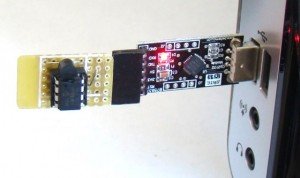
This project describes an easy and inexpensive way of adding a digital thermometer and data logging feature to a PC. It involves a PIC microcontroller that gets the surrounding temperature information from the Microchip MCP9701 sensor, and sends it to a PC through an USB-UART interface. The USB port of the PC is also used to power the device. The open-source Processing programming platform is used to develop a PC application that displays the temperature in a graphics window on the computer screen. The PC application also records the temperature samples plus date and time stamps on an ASCII file.Low cost temperature data logger using PIC and Processing

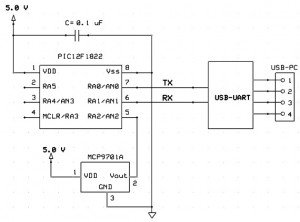
This project is based on Microchip’s PIC12F1822 microcontroller from the enhanced mid-range PIC family. It has got 8-pins in total and the power supply voltage range of 1.8V to 5.5V. The microcontroller has four 10-bit ADC channels and one Enhanced Universal Synchronous Asynchronous Receiver Transmitter (EUSART) module for serial communication. The temperature sensor used here is MCP9701A, which is a Low-Power Linear Active Thermistor IC from Microchip Technology. The range of temperature measurement is from -40°C to +125°C. The output voltage of the sensor is directly proportional to the measured temperature and is calibrated to a slope of 19.53mV/°C. It has a DC offset of 400mV, which corresponds to 0°C. The offset allows reading negative temperatures without the need for a negative supply. The output of the sensor is fed to one of the ADC channels of the PIC12F1822 microcontroller for A/D conversion. The internal fixed voltage reference (FVR) module is configured to generate a stable 2.048 V reference voltage for A/D conversion. The use of FVR module ensures the accuracy of the A/D conversion even when the supply voltage is not stable. The PIC12F1822 microcontroller then serially transmits the 10-bit ADC output to a PC.Low cost temperature data logger using PIC and Processing schematich

The circuit diagram of this project is pretty simple. The microcontroller reads the temperature sensor’s output through RA2/AN2 pin and convert it to a 10-bit digital number. The Tx (RA0) and Rx (RA1) port of the EUSART module are connected to the corresponding pins of the USB-UART module.


For more detail: Low cost temperature data logger using PIC and Processing

The post Low cost temperature data logger using PIC and Processing appeared first on PIC Microcontroller.


Thermometer with PIC Microcontroller

$
0
0

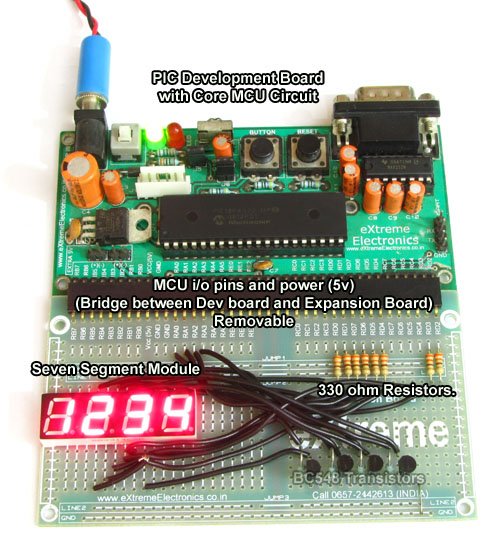
In the last tutorial we learn about the multiplexing technique used with seven segment displays. We learnt how it saves i/o line by using persistence of vision. Only one digit is lit at a time, but to a human eye it is too fast to catch, so we see all four digit lit the same time. In this tutorial we will make a practical use of multiplexed seven segment displays. We will use them to show current room temperature using a LM35 temperature sensor.

Before reading further make sure you know the following concepts

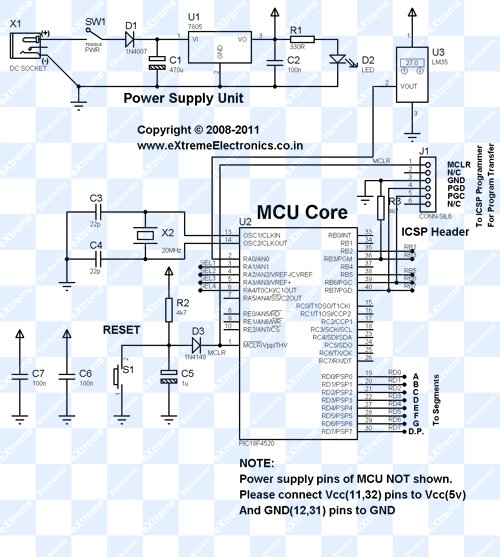
Schematic for PIC Thermometer

Please note that this schematic is slightly different from our previous schematic on multiplexed seven segment display. The display select i/o pins were RA0,RA1,RA2,RA3 on that schematic. But in this schematic the display lines are RA1,RA2,RA3,RA4 this is because RA0 is used as analog input channel for LM35′s output.

PIC Thermometer using LM35

Multiplexed Seven Segment wiring

We use our PIC Development Board for making the above demo project. The PIC Development Board has all the core circuitry to sustain the MCU while the project specific part is developed on the expansion board.

Multiplexed Seven Segment Display SetupThermometer with PIC Microcontroller schematich

HI-TECH C Code for Thermometer Project

/********************************************************************

LM35 Temperature Sensor INTERFACING TEST PROGRAM

---------------------------------------------------------
Simple Program to connect with LM temperature sensor using the
internal ADC of PIC MCU.

The program displays the current environment temperature on
LED Module.

MCU: PIC18FXXXX Series from Microchip.
Compiler: HI-TECH C Compiler for PIC18 MCUs (http://www.htsoft.com/)

Copyrights 2008-2011 Avinash Gupta
eXtreme Electronics, India

For More Info visit
http://www.eXtremeElectronics.co.in

Mail: me@avinashgupta.com

********************************************************************/
#include <htc.h>

#include <math.h>

#include "types.h"

#define _XTAL_FREQ 20000000ul

//Chip Settings
__CONFIG(1,0x0200);
__CONFIG(2,0X1E1F);
__CONFIG(3,0X8100);
__CONFIG(4,0X0081);
__CONFIG(5,0XC00F);


For more detail: Thermometer with PIC Microcontroller

The post Thermometer with PIC Microcontroller appeared first on PIC Microcontroller.

Extend I/O Ports using PIC Microcontroller

$
0
0
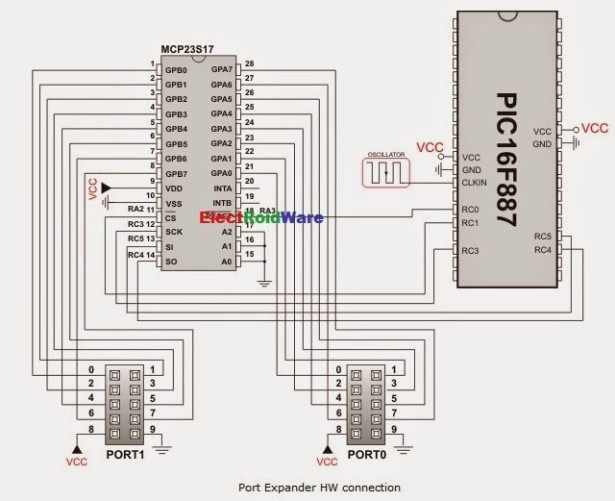
The mikroC PRO for PIC provides a library for communication with the Microchip’s Port Expander MCP23S17 via SPI interface. Connections of the PIC compliant MCU and MCP23S17 is given on the schematic at the bottom of this page.

  Important :

  • The library uses the SPI module for communication. User must initialize the appropriate SPI module before using the Port Expander Library.
  • Library does not use Port Expander interrupts.

 Extend IO Ports using PICExternal dependencies of Port Expander Library

The following variables must be defined in all projects using Port Expander Library: Description : Example :
extern sfr sbit SPExpanderRST; Reset line. sbit SPExpanderRST at RC0_bit;
extern sfr sbit SPExpanderCS; Chip Select line. sbit SPExpanderCS at RC1_bit;
extern sfr sbit SPExpanderRST_Direction; Direction of the Reset pin. sbit SPExpanderRST_Direction at TRISC0_bit;
extern sfr sbit SPExpanderCS_Direction; Direction of the Chip Select pin. sbit SPExpanderCS_Direction at TRISC1_bit;

Library Routines

  • Expander_Init
  • Expander_Init_Advanced
  • Expander_Read_Byte
  • Expander_Write_Byte
  • Expander_Read_PortA
  • Expander_Read_PortB
  • Expander_Read_PortAB
  • Expander_Write_PortA
  • Expander_Write_PortB
  • Expander_Write_PortAB
  • Expander_Set_DirectionPortA
  • Expander_Set_DirectionPortB
  • Expander_Set_DirectionPortAB
  • Expander_Set_PullUpsPortA
  • Expander_Set_PullUpsPortB
  • Expander_Set_PullUpsPortAB

Expander_Init

Prototype void Expander_Init(char ModuleAddress);
Returns Nothing.
Description Initializes Port Expander using SPI communication.
Port Expander module settings :
  • hardware addressing enabled
  • automatic address pointer incrementing disabled (byte mode)
  • BANK_0 register adressing
  • slew rate enabled

Parameters :

  • ModuleAddress: Port Expander hardware address, see schematic at the bottom of this page
Requires Global variables :
  • SPExpanderCS: Chip Select line
  • SPExpanderRST: Reset line
  • SPExpanderCS_Direction: Direction of the Chip Select pin
  • SPExpanderRST_Direction: Direction of the Reset pin

must be defined before using this function.
SPI module needs to be initialized. See SPIx_Init and SPIx_Init_Advanced routines.

Example
// Port Expander module connections
sbit  SPExpanderRST at RC0_bit;
sbit  SPExpanderCS  at RC1_bit;
sbit  SPExpanderRST_Direction at TRISC0_bit;
sbit  SPExpanderCS_Direction  at TRISC1_bit;
// End Port Expander module connections

...

ANSEL  = 0;               // Configure AN pins as digital I/O
ANSELH = 0;

// If Port Expander Library uses SPI module
SPI1_Init();               // Initialize SPI module used with PortExpander
Expander_Init(0);         // Initialize Port Expander

Expander_Init_Advanced

Prototype void Expander_Init_Advanced(char *rstPort, char rstPin, char haen);
Returns Nothing.
Description Initializes Port Expander using SPI communication.
Parameters :
  • rstPort: Port Expander’s reset port
  • rstPin: Port Expander’s reset pin
  • haen: Enable hardware addressing. Valid values :
    • 0 – hardware addressing disabled
    • 1 – hardware addressing enabled
Requires
  • SPExpanderCS: Chip Select line
  • SPExpanderRST: Reset line
  • SPExpanderCS_Direction: Direction of the Chip Select pin
  • SPExpanderRST_Direction: Direction of the Reset pin

must be defined before using this function.

Example
// Port Expander module connections
sbit  SPExpanderRST at RC0_bit;
sbit  SPExpanderCS  at RC1_bit;
sbit  SPExpanderRST_Direction at TRISC0_bit;
sbit  SPExpanderCS_Direction  at TRISC1_bit;
// End Port Expander module connections

...

ANSEL  = 0;               // Configure AN pins as digital I/O
ANSELH = 0;

// If Port Expander Library uses SPI module
SPI1_Init();              // Initialize SPI module used with PortExpander
Expander_Init_Advanced(&PORTB, 0, 0);         // Initialize Port Expander


Expander_Read_Byte

Prototype char Expander_Read_Byte(char ModuleAddress, char RegAddress);
Returns Byte read.
Description The function reads byte from Port Expander.
Parameters :
  • ModuleAddress: Port Expander hardware address, see schematic at the bottom of this page
  • RegAddress: Port Expander’s internal register address
Requires Port Expander must be initialized.
Example
// Read a byte from Port Expander's register
char read_data;
...
read_data = Expander_Read_Byte(0,1);

Expander_Write_Byte

Prototype void Expander_Write_Byte(char ModuleAddress, char RegAddress, char Data);
Returns Nothing.
Description Routine writes a byte to Port Expander.
Parameters :
  • ModuleAddress: Port Expander hardware address, see schematic at the bottom of this page
  • RegAddress: Port Expander’s internal register address
  • Data_: data to be written
Requires Port Expander must be initialized.
Example
// Write a byte to the Port Expander's register
Expander_Write_Byte(0,1,0xFF);

Expander_Read_PortA

Prototype char Expander_Read_PortA(char ModuleAddress);
Returns Byte read.
Description The function reads byte from Port Expander’s PortA.
Parameters :
  • ModuleAddress: Port Expander hardware address, see schematic at the bottom of this page
Requires Port Expander must be initialized.

Port Expander’s PortA should be configured as input.

Example
// Read a byte from Port Expander's PORTA
char read_data;
...
Expander_Set_DirectionPortA(0,0xFF);        // set expander's porta to be input
...
read_data = Expander_Read_PortA(0);

Extend IO Ports using PIC schematichExpander_Read_PortB

Prototype char Expander_Read_PortB(char ModuleAddress);
Returns Byte read.
Description The function reads byte from Port Expander’s PortB.
Parameters :
  • ModuleAddress: Port Expander hardware address, see schematic at the bottom of this page
Requires Port Expander must be initialized.

Port Expander’s PortB should be configured as input.

Example
// Read a byte from Port Expander's PORTB
char read_data;
...
Expander_Set_DirectionPortB(0,0xFF);        // set expander's portb to be input
...
read_data = Expander_Read_PortB(0);


For more detail: Extend I/O Ports using PIC 

The post Extend I/O Ports using PIC Microcontroller appeared first on PIC Microcontroller.

Create Musical Tone using PIC Code

$
0
0
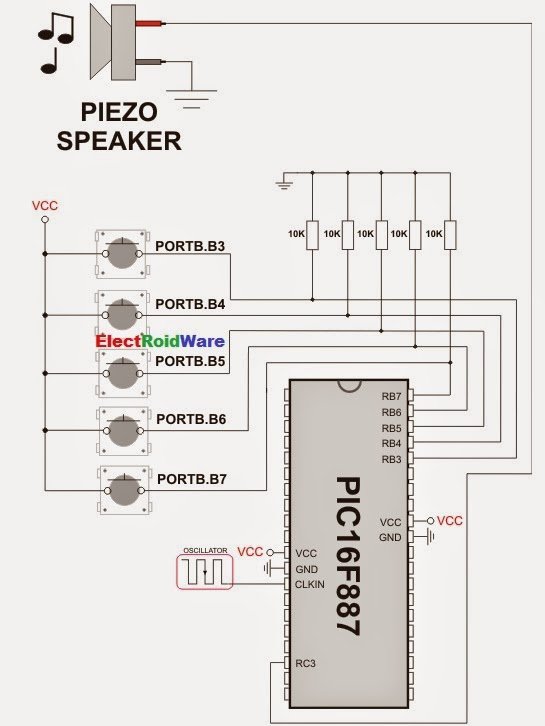
The mikroC PRO for PIC provides a Sound Library to supply users with routines necessary for sound signalization in their applications. Sound generation needs additional hardware, such as piezo-speaker (example of piezo-speaker interface is given on the schematic at the bottom of this page).

Library Routines

  • Sound_Init
  • Sound_PlayCreate Musical Tone using PIC Code

Sound_Init

Prototype void Sound_Init(char *snd_port, char snd_pin);
Returns Nothing.
Description Configures the appropriate MCU pin for sound generation.
Parameters :
  • snd_port: sound output port address
  • snd_pin: sound output pin
Requires Nothing.
Example
// Initialize the pin RC3 for playing sound
Sound_Init(&PORTC, 3);

Sound_Play

Prototype void Sound_Play(unsigned freq_in_hz, unsigned duration_ms);
Returns Nothing.
Description Generates the square wave signal on the appropriate pin.
Parameters :
  • freq_in_hz: signal frequency in Hertz (Hz)
  • duration_ms: signal duration in miliseconds (ms)
  Note : Frequency range is limited by Delay_Cyc parameter. Maximum frequency that can be produced by this function is Freq_max = Fosc/(80*3). Minimum frequency is Freq_min = Fosc/(80*255). Generated frequency may differ from the freq_in_hz parameter due to integer arithmetics.
Requires In order to hear the sound, you need a piezo speaker (or other hardware) on designated port. Also, you must call Sound_Init to prepare hardware for output before using this function.
Example
// Play sound of 1KHz in duration of 100ms
Sound_Play(1000, 100);

Code Example

The example is a simple demonstration of how to use the Sound Library for playing tones on a piezo speaker.
 Create Musical Tone using PIC Code schematich
void Tone1() {
  Sound_Play(659, 250);   // Frequency = 659Hz, duration = 250ms
}

void Tone2() {
  Sound_Play(698, 250);   // Frequency = 698Hz, duration = 250ms
}

void Tone3() {
  Sound_Play(784, 250);   // Frequency = 784Hz, duration = 250ms
}

void Melody() {           // Plays the melody "Yellow house"
  Tone1(); Tone2(); Tone3(); Tone3();
  Tone1(); Tone2(); Tone3(); Tone3();
  Tone1(); Tone2(); Tone3();
  Tone1(); Tone2(); Tone3(); Tone3();
  Tone1(); Tone2(); Tone3();
  Tone3(); Tone3(); Tone2(); Tone2(); Tone1();
}

void ToneA() {
  Sound_Play( 880, 50);
}
void ToneC() {
  Sound_Play(1046, 50);
}
void ToneE() {
  Sound_Play(1318, 50);
}

void Melody2() {
  unsigned short i;
  for (i = 9; i > 0; i--) {
    ToneA(); ToneC(); ToneE();
}


For more detail: Create Musical Tone using PIC Code

The post Create Musical Tone using PIC Code appeared first on PIC Microcontroller.

Connect Ethernet controller with PIC Code

$
0
0
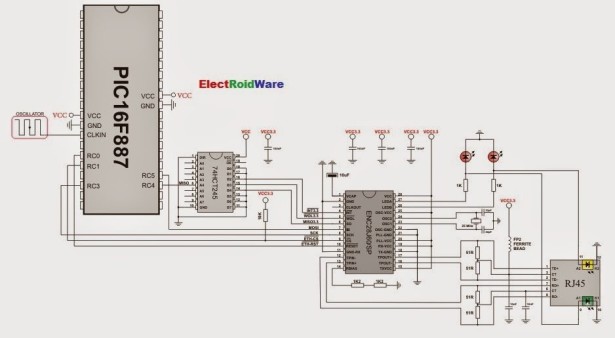
The ENC28J60 is a stand-alone Ethernet controller with an industry standard Serial Peripheral Interface (SPI). It is designed to serve as an Ethernet network interface for any controller equipped with SPI.
The ENC28J60 meets all of the IEEE 802.3 specifications. It incorporates a number of packet filtering schemes to limit incoming packets. It also provides an internal DMA module for fast data throughput and hardware assisted IP checksum calculations. Communication with the host controller is implemented via two interrupt pins and the SPI, with data rates of up to 10 Mb/s. Two dedicated pins are used for LED link and network activity indication.
This library is designed to simplify handling of the underlying hardware (ENC28J60). It works with any PIC with integrated SPI and more than 4 Kb ROM memory. 38 to 40 MHz clock is recommended to get from 8 to 10 Mhz SPI clock, otherwise PIC should be clocked by ENC28J60 clock output due to its silicon bug in SPI hardware. If you try lower PIC clock speed, there might be board hang or miss some requests.
SPI Ethernet ENC28J60 Library supports:

  • IPv4 protocol.
  • ARP requests.
  • ICMP echo requests.
  • UDP requests.
  • TCP requests (no stack, no packet reconstruction).
  • ARP client with cache.
  • DNS client.
  • UDP client.
  • DHCP client.
  • packet fragmentation is NOT supported.

  Important :

  • Due to PIC16 RAM/Flash limitations PIC16 library does NOT have ARP, DNS, UDP and DHCP client support implemented.
  • Global library variable SPI_Ethernet_userTimerSec is used to keep track of time for all client implementations (ARP, DNS, UDP and DHCP). It is user responsibility to increment this variable each second in it’s code if any of the clients is used.
  • For advanced users there are header files ("__EthEnc28j60.h" and "__EthEnc28j60Private.h") in Uses\P16 and Uses\P18 folders of the compiler with description of all routines and global variables, relevant to the user, implemented in the SPI Ethernet ENC28J60 Library.
  • The appropriate hardware SPI module must be initialized before using any of the SPI Ethernet ENC28J60 library routines.
  • For MCUs with two SPI modules it is possible to initialize both of them and then switch by using the SPI_Set_Active() routine.Connect Ethernet controller with PIC Code

Library Dependency Tree

External dependencies of SPI Ethernet ENC28J60 Library

The following variables must be defined in all projects using SPI Ethernet ENC28J60 Library: Description: Examples :
extern sfr sbit SPI_Ethernet_CS; ENC28J60 chip select pin. sbit SPI_Ethernet_CS at RC1_bit;
extern sfr sbit SPI_Ethernet_RST; ENC28J60 reset pin. sbit SPI_Ethernet_Rst at RC0_bit;
extern sfr sbit SPI_Ethernet_CS_Direction; Direction of the ENC28J60 chip select pin. sbit SPI_Ethernet_CS_Direction at TRISC1_bit;
extern sfr sbit SPI_Ethernet_RST_Direction; Direction of the ENC28J60 reset pin. sbit SPI_Ethernet_Rst_Direction at TRISC0_bit;
The following routines must be defined in all project using SPI Ethernet ENC28J60 Library: Description: Examples :
unsigned int SPI_Ethernet_UserTCP(unsigned char *remoteHost, unsigned int remotePort, unsigned int localPort, unsigned int reqLength, TEthPktFlags *flags); TCP request handler. Refer to the library example at the bottom of this page for code implementation.
unsigned int SPI_Ethernet_UserUDP(unsigned char *remoteHost, unsigned int remotePort, unsigned int localPort, unsigned int reqLength, TEthPktFlags *flags); UDP request handler. Refer to the library example at the bottom of this page for code implementation.

Library Routines

PIC16 and PIC18:

  • SPI_Ethernet_Init
  • SPI_Ethernet_Enable
  • SPI_Ethernet_Disable
  • SPI_Ethernet_doPacket
  • SPI_Ethernet_putByte
  • SPI_Ethernet_putBytes
  • SPI_Ethernet_putString
  • SPI_Ethernet_putConstString
  • SPI_Ethernet_putConstBytes
  • SPI_Ethernet_getByte
  • SPI_Ethernet_getBytes
  • SPI_Ethernet_UserTCP
  • SPI_Ethernet_UserUDP

PIC18 Only:

  • SPI_Ethernet_getIpAddress
  • SPI_Ethernet_getGwIpAddress
  • SPI_Ethernet_getDnsIpAddress
  • SPI_Ethernet_getIpMask
  • SPI_Ethernet_confNetwork
  • SPI_Ethernet_arpResolve
  • SPI_Ethernet_sendUDP
  • SPI_Ethernet_dnsResolve
  • SPI_Ethernet_initDHCP
  • SPI_Ethernet_doDHCPLeaseTime
  • SPI_Ethernet_renewDHCP

SPI_Ethernet_Init

Prototype void SPI_Ethernet_Init(unsigned char *mac, unsigned char *ip, unsigned char fullDuplex);
Returns Nothing.
Description This is MAC module routine. It initializes ENC28J60 controller. This function is internaly splited into 2 parts to help linker when coming short of memory.
ENC28J60 controller settings (parameters not mentioned here are set to default):
  • receive buffer start address : 0x0000.
  • receive buffer end address : 0x19AD.
  • transmit buffer start address: 0x19AE.
  • transmit buffer end address : 0x1FFF.
  • RAM buffer read/write pointers in auto-increment mode.
  • receive filters set to default: CRC + MAC Unicast + MAC Broadcast in OR mode.
  • flow control with TX and RX pause frames in full duplex mode.
  • frames are padded to 60 bytes + CRC.
  • maximum packet size is set to 1518.
  • Back-to-Back Inter-Packet Gap: 0x15 in full duplex mode; 0x12 in half duplex mode.
  • Non-Back-to-Back Inter-Packet Gap: 0x0012 in full duplex mode; 0x0C12 in half duplex mode.
  • Collision window is set to 63 in half duplex mode to accomodate some ENC28J60 revisions silicon bugs.
  • CLKOUT output is disabled to reduce EMI generation.
  • half duplex loopback disabled.
  • LED configuration: default (LEDA-link status, LEDB-link activity).

Parameters:

  • mac: RAM buffer containing valid MAC address.
  • ip: RAM buffer containing valid IP address.
  • fullDuplex: ethernet duplex mode switch. Valid values: 0 (half duplex mode) and 1 (full duplex mode).
Requires Global variables :
  • SPI_Ethernet_CS: Chip Select line
  • SPI_Ethernet_CS_Direction: Direction of the Chip Select pin
  • SPI_Ethernet_RST: Reset line
  • SPI_Ethernet_RST_Direction: Direction of the Reset pin

must be defined before using this function.
The SPI module needs to be initialized. See the SPIx_Init and SPIx_Init_Advanced routines.

Example
#define SPI_Ethernet_HALFDUPLEX     0
#define SPI_Ethernet_FULLDUPLEX     1

// mE ethernet NIC pinout
sfr sbit SPI_Ethernet_Rst at RC0_bit;
sfr sbit SPI_Ethernet_CS  at RC1_bit;
sfr sbit SPI_Ethernet_Rst_Direction at TRISC0_bit;
sfr sbit SPI_Ethernet_CS_Direction  at TRISC1_bit;
// end ethernet NIC definitions

unsigned char myMacAddr[6] = {0x00, 0x14, 0xA5, 0x76, 0x19, 0x3f}; // my MAC address 
unsigned char myIpAddr     = {192, 168,   1, 60 };  // my IP addr

SPI1_Init(); 
SPI_Ethernet_Init(myMacAddr, myIpAddr, SPI_Ethernet_FULLDUPLEX);

SPI_Ethernet_Enable

Prototype void SPI_Ethernet_Enable(unsigned char enFlt);
Returns Nothing.
Description This is MAC module routine. This routine enables appropriate network traffic on the ENC28J60 module by the means of it’s receive filters (unicast, multicast, broadcast, crc). Specific type of network traffic will be enabled if a corresponding bit of this routine’s input parameter is set. Therefore, more than one type of network traffic can be enabled at the same time. For this purpose, predefined library constants (see the table below) can be ORed to form appropriate input value.
Parameters:
  • enFlt: network traffic/receive filter flags. Each bit corresponds to the appropriate network traffic/receive filter:
    Bit Mask Description Predefined library const
    0 0x01 MAC Broadcast traffic/receive filter flag. When set, MAC broadcast traffic will be enabled. _SPI_Ethernet_BROADCAST
    1 0x02 MAC Multicast traffic/receive filter flag. When set, MAC multicast traffic will be enabled. _SPI_Ethernet_MULTICAST
    2 0x04 not used none
    3 0x08 not used none
    4 0x10 not used none
    5 0x20 CRC check flag. When set, packets with invalid CRC field will be discarded. _SPI_Ethernet_CRC
    6 0x40 not used none
    7 0x80 MAC Unicast traffic/receive filter flag. When set, MAC unicast traffic will be enabled. _SPI_Ethernet_UNICAST

      Note :

    • Advanced filtering available in the ENC28J60 module such as Pattern Match, Magic Packet and Hash Table can not be enabled by this routine. Additionaly, all filters, except CRC, enabled with this routine will work in OR mode, which means that packet will be received if any of the enabled filters accepts it.
    • This routine will change receive filter configuration on-the-fly. It will not, in any way, mess with enabling/disabling receive/transmit logic or any other part of the ENC28J60 module. The ENC28J60 module should be properly cofigured by the means of SPI_Ethernet_Init routine.
Requires Ethernet module has to be initialized. See SPI_Ethernet_Init.
Example
SPI_Ethernet_Enable(_SPI_Ethernet_CRC | _SPI_Ethernet_UNICAST); // enable CRC checking and Unicast traffic

SPI_Ethernet_Disable

Prototype void SPI_Ethernet_Disable(unsigned char disFlt);
Returns Nothing.
Description This is MAC module routine. This routine disables appropriate network traffic on the ENC28J60 module by the means of it’s receive filters (unicast, multicast, broadcast, crc). Specific type of network traffic will be disabled if a corresponding bit of this routine’s input parameter is set. Therefore, more than one type of network traffic can be disabled at the same time. For this purpose, predefined library constants (see the table below) can be ORed to form appropriate input value.
Parameters:
  • disFlt: network traffic/receive filter flags. Each bit corresponds to the appropriate network traffic/receive filter:
    Bit Mask Description Predefined library const
    0 0x01 MAC Broadcast traffic/receive filter flag. When set, MAC broadcast traffic will be disabled. _SPI_Ethernet_BROADCAST
    1 0x02 MAC Multicast traffic/receive filter flag. When set, MAC multicast traffic will be disabled. _SPI_Ethernet_MULTICAST
    2 0x04 not used none
    3 0x08 not used none
    4 0x10 not used none
    5 0x20 CRC check flag. When set, CRC check will be disabled and packets with invalid CRC field will be accepted. _SPI_Ethernet_CRC
    6 0x40 not used none
    7 0x80 MAC Unicast traffic/receive filter flag. When set, MAC unicast traffic will be disabled. _SPI_Ethernet_UNICAST

      Note :

    • Advanced filtering available in the ENC28J60 module such as Pattern Match, Magic Packet and Hash Table can not be disabled by this routine.
    • This routine will change receive filter configuration on-the-fly. It will not, in any way, mess with enabling/disabling receive/transmit logic or any other part of the ENC28J60 module.
    • The ENC28J60 module should be properly cofigured by the means of SPI_Ethernet_Init routine.
Requires Ethernet module has to be initialized.
Example
SPI_Ethernet_Disable(_SPI_Ethernet_CRC | _SPI_Ethernet_UNICAST); // disable CRC checking and Unicast traffic

SPI_Ethernet_doPacket

Prototype unsigned char SPI_Ethernet_doPacket();
Returns
  • 0 – upon successful packet processing (zero packets received or received packet processed successfully).
  • 1 – upon reception error or receive buffer corruption. ENC28J60 controller needs to be restarted.
  • 2 – received packet was not sent to us (not our IP, nor IP broadcast address).
  • 3 – received IP packet was not IPv4.
  • 4 – received packet was of type unknown to the library.
Description This is MAC module routine. It processes next received packet if such exists. Packets are processed in the following manner:
  • ARP & ICMP requests are replied automatically.
  • upon TCP request the SPI_Ethernet_UserTCP function is called for further processing.
  • upon UDP request the SPI_Ethernet_UserUDP function is called for further processing.
  Note : SPI_Ethernet_doPacket must be called as often as possible in user’s code.
Requires Ethernet module has to be initialized.
Example
if (SPI_Ethernet_doPacket() == 0)(1) {  // process received packets
  ...
}

SPI_Ethernet_putByte

Prototype void SPI_Ethernet_putByte(unsigned char v);
Returns Nothing.
Description This is MAC module routine. It stores one byte to address pointed by the current ENC28J60 write pointer (EWRPT).
Parameters:
  • v: value to store
Requires Ethernet module has to be initialized.
Example
char data_;
...
SPI_Ethernet_putByte(data); // put an byte into ENC28J60 buffer

SPI_Ethernet_putBytes

Prototype void SPI_Ethernet_putBytes(unsigned char *ptr, unsigned int n);
Returns Nothing.
Description This is MAC module routine. It stores requested number of bytes into ENC28J60 RAM starting from current ENC28J60 write pointer (EWRPT) location.
Parameters:
  • ptr: RAM buffer containing bytes to be written into ENC28J60 RAM.
  • n: number of bytes to be written.
Requires Ethernet module has to be initialized.
Example
char *buffer =  "mikroElektronika";  
...
SPI_Ethernet_putBytes(buffer, 16); // put an RAM array into ENC28J60 buffer

SPI_Ethernet_putConstBytes

Prototype void SPI_Ethernet_putConstBytes(const unsigned char *ptr, unsigned int n);
Returns Nothing.
Description This is MAC module routine. It stores requested number of const bytes into ENC28J60 RAM starting from current ENC28J60 write pointer (EWRPT) location.
Parameters:
  • ptr: const buffer containing bytes to be written into ENC28J60 RAM.
  • n: number of bytes to be written.
Requires Ethernet module has to be initialized.
Example
const char *buffer =  "mikroElektronika";  
...
SPI_Ethernet_putConstBytes(buffer, 16); // put a const array into ENC28J60 buffer

SPI_Ethernet_putString

Prototype unsigned int SPI_Ethernet_putString(unsigned char *ptr);
Returns Number of bytes written into ENC28J60 RAM.
Description This is MAC module routine. It stores whole string (excluding null termination) into ENC28J60 RAM starting from current ENC28J60 write pointer (EWRPT) location.
Parameters:
  • ptr: string to be written into ENC28J60 RAM.
Requires Ethernet module has to be initialized.
Example
char *buffer =  "mikroElektronika";  
...
SPI_Ethernet_putString(buffer); // put a RAM string into ENC28J60 buffer

SPI_Ethernet_putConstString

Prototype unsigned int SPI_Ethernet_putConstString(const unsigned char *ptr);
Returns Number of bytes written into ENC28J60 RAM.
Description This is MAC module routine. It stores whole const string (excluding null termination) into ENC28J60 RAM starting from current ENC28J60 write pointer (EWRPT) location.
Parameters:
  • ptr: const string to be written into ENC28J60 RAM.
Requires Ethernet module has to be initialized.
Example
const char *buffer =  "mikroElektronika"; 
...
SPI_Ethernet_putConstString(buffer); // put a const string into ENC28J60 buffer

SPI_Ethernet_getByte

Prototype unsigned char SPI_Ethernet_getByte();
Returns Byte read from ENC28J60 RAM.
Description This is MAC module routine. It fetches a byte from address pointed to by current ENC28J60 read pointer (ERDPT).
Requires Ethernet module has to be initialized.
Example
char buffer; 
...
buffer = SPI_Ethernet_getByte(); // read a byte from ENC28J60 buffer

SPI_Ethernet_getBytes

Prototype void SPI_Ethernet_getBytes(unsigned char *ptr, unsigned int addr, unsigned int n);
Returns Nothing.
Description This is MAC module routine. It fetches equested number of bytes from ENC28J60 RAM starting from given address. If value of 0xFFFF is passed as the address parameter, the reading will start from current ENC28J60 read pointer (ERDPT) location.
Parameters:
  • ptr: buffer for storing bytes read from ENC28J60 RAM.
  • addr: ENC28J60 RAM start address. Valid values: 0..8192.
  • n: number of bytes to be read.
Requires Ethernet module has to be initialized.
Example
char buffer[16];  
...
SPI_Ethernet_getBytes(buffer, 0x100, 16); // read 16 bytes, starting from address 0x100

SPI_Ethernet_UserTCP

Prototype unsigned int SPI_Ethernet_UserTCP(unsigned char *remoteHost, unsigned int remotePort, unsigned int localPort, unsigned int reqLength, TEthPktFlags *flags);
Returns
  • 0 – there should not be a reply to the request.
  • Length of TCP/HTTP reply data field – otherwise.
Description This is TCP module routine. It is internally called by the library. The user accesses to the TCP/HTTP request by using some of the SPI_Ethernet_get routines. The user puts data in the transmit buffer by using some of the SPI_Ethernet_put routines. The function must return the length in bytes of the TCP/HTTP reply, or 0 if there is nothing to transmit. If there is no need to reply to the TCP/HTTP requests, just define this function with return(0) as a single statement.
Parameters:
  • remoteHost: client’s IP address.
  • remotePort: client’s TCP port.
  • localPort: port to which the request is sent.
  • reqLength: TCP/HTTP request data field length.
  • flags: structure consisted of two bit fields :
    typedef struct {
      unsigned canCloseTCP: 1;  // flag which closes socket
      unsigned isBroadcast: 1;  // flag which denotes that the IP package has been received via subnet broadcast address (not used for PIC16 family)
    } TEthPktFlags;
    
  Note : The function source code is provided with appropriate example projects. The code should be adjusted by the user to achieve desired reply.
Requires Ethernet module has to be initialized.
Example This function is internally called by the library and should not be called by the user’s code.

SPI_Ethernet_UserUDP

Prototype unsigned int SPI_Ethernet_UserUDP(unsigned char *remoteHost, unsigned int remotePort, unsigned int destPort, unsigned int reqLength, TEthPktFlags *flags);
Returns
  • 0 – there should not be a reply to the request.
  • Length of UDP reply data field – otherwise.
Description This is UDP module routine. It is internally called by the library. The user accesses to the UDP request by using some of the SPI_Ethernet_get routines. The user puts data in the transmit buffer by using some of the SPI_Ethernet_put routines. The function must return the length in bytes of the UDP reply, or 0 if nothing to transmit. If you don’t need to reply to the UDP requests, just define this function with a return(0) as single statement.
Parameters:
  • remoteHost: client’s IP address.
  • remotePort: client’s port.
  • destPort: port to which the request is sent.
  • flags: structure consisted of two bit fields :
    typedef struct {
      unsigned canCloseTCP: 1;  // flag which closes TCP socket (not relevant to UDP)
      unsigned isBroadcast: 1;  // flag which denotes that the IP package has been received via subnet broadcast address (not used for PIC16 family)
    } TEthPktFlags;
    
      Note : The function source code is provided with appropriate example projects. The code should be adjusted by the user to achieve desired reply.
Requires Ethernet module has to be initialized.
Example This function is internally called by the library and should not be called by the user’s code.

SPI_Ethernet_getIpAddress

Prototype unsigned char * SPI_Ethernet_getIpAddress();
Returns Pointer to the global variable holding IP address.
Description This routine should be used when DHCP server is present on the network to fetch assigned IP address.
  Note : User should always copy the IP address from the RAM location returned by this routine into it’s own IP address buffer. These locations should not be altered by the user in any case!
Requires Ethernet module has to be initialized.
Available for PIC18 family MCUs only.
Example
unsigned char ipAddr[4];  // user IP address buffer
... 
memcpy(ipAddr, SPI_Ethernet_getIpAddress(), 4); // fetch IP address

SPI_Ethernet_getGwIpAddress

Prototype unsigned char * SPI_Ethernet_getGwIpAddress();
Returns Pointer to the global variable holding gateway IP address.
Description This routine should be used when DHCP server is present on the network to fetch assigned gateway IP address.
  Note : User should always copy the IP address from the RAM location returned by this routine into it’s own gateway IP address buffer. These locations should not be altered by the user in any case!
Requires Ethernet module has to be initialized.
Available for PIC18 family MCUs only.
Example
unsigned char gwIpAddr[4];  // user gateway IP address buffer
... 
memcpy(gwIpAddr, SPI_Ethernet_getGwIpAddress(), 4); // fetch gateway IP address 

SPI_Ethernet_getDnsIpAddress

Prototype unsigned char * SPI_Ethernet_getDnsIpAddress()
Returns Pointer to the global variable holding DNS IP address.
Description his routine should be used when DHCP server is present on the network to fetch assigned DNS IP address.
  Note : User should always copy the IP address from the RAM location returned by this routine into it’s own DNS IP address buffer. These locations should not be altered by the user in any case!
Requires Ethernet module has to be initialized.
Available for PIC18 family MCUs only.
Example
unsigned char dnsIpAddr[4];  // user DNS IP address buffer
... 
memcpy(dnsIpAddr, SPI_Ethernet_getDnsIpAddress(), 4); // fetch DNS server address 

Connect Ethernet controller with PIC Code schematich

SPI_Ethernet_getIpMask

Prototype unsigned char * SPI_Ethernet_getIpMask()
Returns Pointer to the global variable holding IP subnet mask.
Description This routine should be used when DHCP server is present on the network to fetch assigned IP subnet mask.
  Note : User should always copy the IP address from the RAM location returned by this routine into it’s own IP subnet mask buffer. These locations should not be altered by the user in any case!
Requires Ethernet module has to be initialized.
Available for PIC18 family MCUs only.
Example
unsigned char IpMask[4];  // user IP subnet mask buffer
... 
memcpy(IpMask, SPI_Ethernet_getIpMask(), 4); // fetch IP subnet mask

SPI_Ethernet_confNetwork

Prototype void SPI_Ethernet_confNetwork(char *ipMask, char *gwIpAddr, char *dnsIpAddr);
Returns Nothing.
Description Configures network parameters (IP subnet mask, gateway IP address, DNS IP address) when DHCP is not used.
Parameters:
  • ipMask: IP subnet mask.
  • gwIpAddr gateway IP address.
  • dnsIpAddr: DNS IP address.


For more detail: Connect Ethernet controller with PIC Code

The post Connect Ethernet controller with PIC Code appeared first on PIC Microcontroller.

UART Communication using PIC Code

$
0
0

The UART hardware module is available with a number of PIC compliant MCUs. The mikroC PRO for PIC UART Library provides comfortable work with the Asynchronous (full duplex) mode.
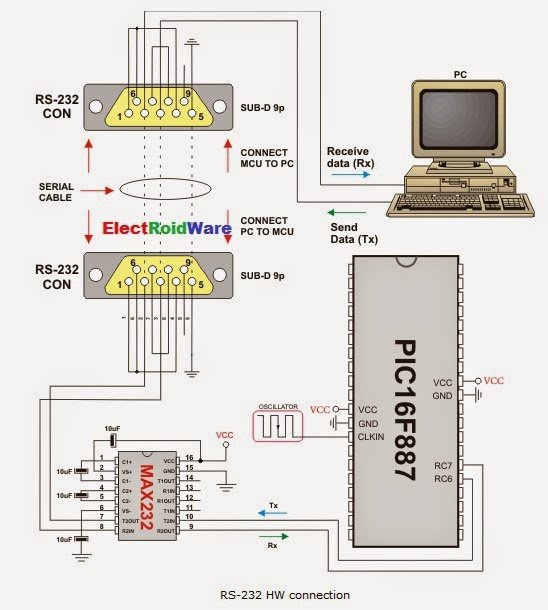
You can easily communicate with other devices via RS-232 protocol (for example with PC, see the figure at the end of the topic – RS-232 HW connection). You need a PIC MCU with hardware integrated UART, for example 16F887. Then, simply use the functions listed below.

  Important :

  • UART library routines require you to specify the module you want to use. To select the desired UART module, simply change the letter x in the routine prototype for a number from 1 to 2.
  • Switching between the UART modules in the UART library is done by the UART_Set_Active function (UART modules have to be previously initialized).
  • Number of UART modules per MCU differs from chip to chip. Please, read the appropriate datasheet before utilizing this library.UART Communication using PIC Code

Library Routines

  • UARTx_Init
  • UARTx_Data_Ready
  • UARTx_Tx_Idle
  • UARTx_Read
  • UARTx_Read_Text
  • UARTx_Write
  • UARTx_Write_Text
  • UART_Set_Active

Generic Routines

  • UART_Data_Ready
  • UART_Tx_Idle
  • UART_Read
  • UART_Read_Text
  • UART_Write
  • UART_Write_Text

UARTx_Init

Prototype void UARTx_Init(const unsigned long baud_rate);
Returns Nothing.
Description Initializes desired hardware UART module with the desired baud rate. Refer to the device data sheet for baud rates allowed for specific Fosc. If you specify the unsupported baud rate, compiler will report an error.
Requires You need PIC MCU with hardware UART.
UARTx_Init needs to be called before using other functions from UART Library.
Parameters :
  • baud_rate: requested baud rate

Refer to the device data sheet for baud rates allowed for specific Fosc.

  Note : Calculation of the UART baud rate value is carried out by the compiler, as it would produce a relatively large code if performed on the library level.
Therefore, compiler needs to know the value of the parameter in the compile time. That is why this parameter needs to be a constant, and not a variable.
Example
// Initialize hardware UART1 and establish communication at 9600 bps
UART1_Init(9600);

UARTx_Data_Ready

Prototype char UARTx_Data_Ready();
Returns
  • 1 if data is ready for reading
  • 0 if there is no data in the receive register
Description Use the function to test if data in receive buffer is ready for reading.
Requires UART HW module must be initialized and communication established before using this function.
Example
// If data is ready, read it:
if (UART1_Data_Ready() == 1) { 
 receive = UART1_Read();
 }

UARTx_Tx_Idle

Prototype char UARTx_Tx_Idle();
Returns
  • 1 if the data has been transmitted
  • 0 otherwise
Description Use the function to test if the transmit shift register is empty or not.
Requires UART HW module must be initialized and communication established before using this function.
Example
// If the previous data has been shifted out, send next data:
if (UART1_Tx_Idle() == 1) { 
  UART1_Write(_data);
 }

UARTx_Read

Prototype char UARTx_Read();
Returns Returns the received byte.
Description Function receives a byte via UART. Use the function UARTx_Data_Ready to test if data is ready first.
Requires UART HW module must be initialized and communication established before using this function.
Example
// If data is ready, read it:
if (UART1_Data_Ready() == 1) { 
 receive = UART1_Read();
 }

UARTx_Read_Text

Prototype void UARTx_Read_Text(char *Output, char *Delimiter, char Attempts);
Returns Nothing.
Description Reads characters received via UART until the delimiter sequence is detected. The read sequence is stored in the parameter output; delimiter sequence is stored in the parameter delimiter.
This is a blocking call: the delimiter sequence is expected, otherwise the procedure exits (if the delimiter is not found).
Parameters :
  • Output: received text
  • Delimiter: sequence of characters that identifies the end of a received string
  • Attempts: defines number of received characters in which Delimiter sequence is expected. If Attempts is set to 255, this routine will continuously try to detect the Delimiter sequence.
Requires UART HW module must be initialized and communication established before using this function.
Example Read text until the sequence “OK” is received, and send back what’s been received:
UART1_Init(4800);                         // initialize UART1 module
Delay_ms(100);

while (1) {
  if (UART1_Data_Ready() == 1) {          // if data is received 
    UART1_Read_Text(output, "OK", 10);    // reads text until 'OK' is found
    UART1_Write_Text(output);             // sends back text 
 }
}

UARTx_Write

Prototype void UARTx_Write(char data_);
Returns Nothing.
Description The function transmits a byte via the UART module.
Parameters :
  • _data: data to be sent
Requires UART HW module must be initialized and communication established before using this function.
Example
unsigned char _data = 0x1E;
...
UART1_Write(_data);

UARTx_Write_Text

Prototype void UARTx_Write_Text(char * UART_text);
Returns Nothing.
Description Sends text via UART. Text should be zero terminated.
Parameters :
  • UART_text: text to be sent
Requires UART HW module must be initialized and communication established before using this function.
Example Read text until the sequence “OK” is received, and send back what’s been received:
UART1_Init(4800);                         // initialize UART1 module
Delay_ms(100);

while (1) {
  if (UART1_Data_Ready() == 1) {          // if data is received 
    UART1_Read_Text(output, "OK", 10);    // reads text until 'OK' is found
    UART1_Write_Text(output);             // sends back text 
 }
}

UART_Set_Active

Prototype void UART_Set_Active(char (*read_ptr)(), void (*write_ptr)(unsigned char data_), char (*ready_ptr)(), char (*tx_idle_ptr)())
Returns Nothing.
Description Sets active UART module which will be used by the UART library routines.
Parameters :
  • read_ptr: UARTx_Read handler
  • write_ptr: UARTx_Write handler
  • ready_ptr: UARTx_Data_Ready handler
  • tx_idle_ptr: UARTx_Tx_Idle handler
Requires Routine is available only for MCUs with two UART modules.
Used UART module must be initialized before using this routine. See UARTx_Init routine
Example
UART1_Init(9600);                    // initialize UART1 module
UART2_Init(9600);                    // initialize UART2 module

RS485Master_Init();                  // initialize MCU as Master

UART_Set_Active(&UART1_Read, &UART1_Write, &UART1_Data_Ready, &UART1_Tx_Idle); // set UART1 active
RS485Master_Send(dat,1,160);        // send message through UART1

UART_Set_Active(&UART2_Read, &UART2_Write, &UART2_Data_Ready, &UART2_Tx_Idle); // set UART2 active
RS485Master_Send(dat,1,160);        // send through UART2

UART_Data_Ready

Prototype char UART_Data_Ready();
Returns
  • 1 if data is ready for reading
  • 0 if there is no data in the receive register
Description Use the function to test if data in receive buffer is ready for reading.
This is a generic routine which uses the active UART module previously activated by the UART_Set_Active routine.
Requires UART HW module must be initialized and communication established before using this function.
Example
// If data is ready, read it:
if (UART_Data_Ready() == 1) { 
 receive = UART_Read();
 }

UART_Tx_Idle

Prototype char UART_Tx_Idle();
Returns
  • 1 if the data has been transmitted
  • 0 otherwise
Description Use the function to test if the transmit shift register is empty or not.
This is a generic routine which uses the active UART module previously activated by the UART_Set_Active routine.
Requires UART HW module must be initialized and communication established before using this function.
Example
// If the previous data has been shifted out, send next data:
if (UART_Tx_Idle() == 1) { 
  UART_Write(_data);
 }

UART_Read

Prototype char UART_Read();
Returns Returns the received byte.
Description Function receives a byte via UART. Use the function UART_Data_Ready to test if data is ready first.
This is a generic routine which uses the active UART module previously activated by the UART_Set_Active routine.
Requires UART HW module must be initialized and communication established before using this function.
Example
// If data is ready, read it:
if (UART_Data_Ready() == 1) { 
 receive = UART_Read();
 }

UART Communication using PIC Code schematichUART_Read_Text

Prototype void UART_Read_Text(char *Output, char *Delimiter, char Attempts);
Returns Nothing.
Description Reads characters received via UART until the delimiter sequence is detected. The read sequence is stored in the parameter output; delimiter sequence is stored in the parameter delimiter.
This is a blocking call: the delimiter sequence is expected, otherwise the procedure exits (if the delimiter is not found).
This is a generic routine which uses the active UART module previously activated by the UART_Set_Active routine.
Parameters :
  • Output: received text
  • Delimiter: sequence of characters that identifies the end of a received string
  • Attempts: defines number of received characters in which Delimiter sequence is expected. If Attempts is set to 255, this routine will continuously try to detect the Delimiter sequence.
Requires UART HW module must be initialized and communication established before using this function.
Example Read text until the sequence “OK” is received, and send back what’s been received:
UART1_Init(4800);                         // initialize UART1 module
Delay_ms(100);

while (1) {
  if (UART_Data_Ready() == 1) {          // if data is received 
    UART_Read_Text(output, "OK", 10);    // reads text until 'OK' is found
    UART_Write_Text(output);             // sends back text 
 }
}


For more detail: UART Communication using PIC Code

The post UART Communication using PIC Code appeared first on PIC Microcontroller.

PIC Evaluation/Development Board Implementation using pic-microcontroller

$
0
0

Abstract

The objective of this project is to produce a PIC evaluation/development board to be used by future ECPE senior design project teams.  Many project implementations call for some sort of microcontroller unit in the final product, and this need can often be met by a simple PIC microcontroller.  However, the development of a PIC solution is often beyond the expertise and available time of the design team.  The board to be produced by this project will enable design teams to quickly and easily develop a PIC for use in their projects.  The board will include a wide variety of input and output devices and interfacing ports.  It will also be designed to provide a high degree of flexibility, giving future design teams the needed functionality to produce a successful end product.

Acknowledgement
Development Board Implementation

Special thanks is due to our faculty advisors, Dr. Rover and Dr. Weber.  They have provided valuable advice and insight, and continue to play an active role in enabling the development of this project to its maximum potential.


1. Introduction
1.1 General Background
Many senior design and other class design projects within the computer and electrical engineering department require a micro controller unit (MCU).  However, before they can be used in a design project, these units require additional components and design, often beyond the expertise or time available within a design team. The objective of this project is to design and fabricate an evaluation/development board for a PIC, which will provide the required power supply, frequency source, and other supporting components needed to realize a fully functional, low cost, “off-the-shelf” MCU for use in future senior design projects. Having such units readily available will allow senior design teams to concentrate on completing their assigned design rather than expending time and effort on supplementary components. Full documentation will include tutorials and design guides for using the PICs in various applications.

1.2 Technical Problem

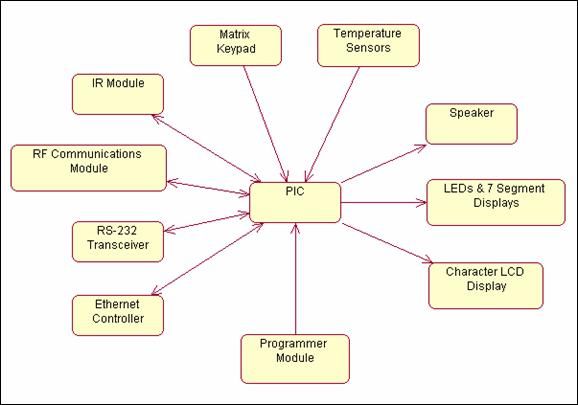
In order to implement a development board for a PIC, there are several components which must be designed to work together.  The components used will provide a design team with flexibility of use which will allow the board to be used in varying applications.  Necessary apparatus includes the microcontroller unit (MCU), and one or more of the interfacing components.  The PIC evaluation/development board will include a LCD display, general purpose output LEDs, LED bar graphs, 7-segment displays, a RS232 port for serial PC interfacing, and a matrix keypad.  These devices will allow the board to be quite versatile.

1.3 Operating Environment
Because this product is designed to be used as a “stepping stone” in future senior design projects, an exact operating environment is unknown.  However, it is preferable for the board to be capable in as wide of a range of environments as possible to allow the most flexibility.  The operational range will be from -20˚C to 80˚C and from 0-90% humidity.  By adding further casing around the board it may be possible to further extend the operational range.

1.4 Intended User(s) & Use(s)
The PIC evaluation/development board will be designed for use by people with experience with electrical and computer engineering.  More specifically, this board is intended to be used by students in future senior design projects.  The very design of this board allows for a variety of uses.  These uses could include, but are not limited to: data acquisition, control, or information processing.  Other users of this product could include faculty members, as well as undergraduate students in a lab environment.

1.5 Assumptions & Limitations
The following assumptions and limitations impact the implementation of the project.


Assumptions:

Users have an electrical/computer engineering background.
Users have access to a personal computer with a free parallel port.
Limitations:

Budget of one hundred dollars.
Typical PCB fabrication uses 12”x12” boards.  Therefore the layout at a maximum must fit that constraint.  The goal is to make the entire board smaller than a sheet of paper (8½”x11”).
Environmental factors- The board must be able to operate in a “normal” environment.  This consists of no abnormal EMI fields, no water and no extreme temperatures (outside of the operating ranges of the components).

2. Design Requirements
2.1 Design Objectives
Support for multiple PICs – The board will have the capability to accept several selected models of PICs.

Versatile – The PIC evaluation and development board will be useful in a wide variety of applications.  The board will be designed in a flexible manner to allow the user to connect the PIC to any of the components on the board.

Programmer – The board will include a PIC16 programmer, as well as the software required to develop and upload the program to the PIC.

Multiple output devices – The board will include a character LCD display, general purpose LEDs, an LED bar graph, 7-segment displays, and a speaker.
Input capabilities – The user will be able to give input to the PIC with a matrix keypad, several on-off push buttons, DIP switches and digital and analog temperature sensors.
Interfacing capabilities – The board will have the capability to interface with other devices via an RS-232 serial port and an infrared transceiver, as well as via any interfacing ports built-in to the selected PIC.
2.2 Functional Requirements
Provide solutions for a variety of applications – The user will be able to program (and reprogram) his or her selected PIC using the integrated PIC16 programmer.  Once programmed, the PIC can be inserted into a socket similar to a solder-less breadboard, allowing the user to connect and disconnect devices on the board as needed.

Allow development of several PICs – The user will be able to design a system with any of a number of selected models of Flash reprogrammable PICs – 18-, 28-, and 40-pin models.  The board will provide the capability to swap PICs quickly and easily.

Development Board Implementation

User-friendly design environment – The board will be packaged with a simple design environment for programming and testing.  The design environment will include a number of ASM libraries to support the board’s devices.
Well-documented – The package will include extensive documentation, including tutorials and design guides, so that the user will be able to quickly adapt the board to any application.
2.3 Design Constraints
Cost – Care must be taken to limit the cost of the board components as well as the complexity of the design, both to meet the budget of our own team and to ensure that future design project teams will be able to use the board within the means of their budget

Environment – Because this board is being designed to accommodate unknown future projects, it must be designed to operate in a wide range of environmental conditions.  The possible operating range will be defined as -20º – 80ºC and 0 – 90% humidity.

Size – The board must be small enough to be practical for most applications, without sacrificing versatility.
 

For more detail: PIC Evaluation/Development Board Implementation

The post PIC Evaluation/Development Board Implementation using pic-microcontroller appeared first on PIC Microcontroller.

Connect Matrix Keypad with PIC Controller Code

$
0
0
The mikroC PRO for PIC provides a library for working with 4×4 keypad. The library routines can also be used with 4×1, 4×2, or 4×3 keypad. For connections explanation see schematic at the bottom of this page.

External dependencies of Keypad Library

The following variable must be defined in all projects using Keypad Library: Description : Example :
extern sfr char keypadPort; Keypad Port. char keypadPort at PORTD;

Connect Matrix Keypad with PIC Controller CodeLibrary Routines

  • Keypad_Init
  • Keypad_Key_Press
  • Keypad_Key_Click

Keypad_Init

Prototype void Keypad_Init(void);
Returns Nothing.
Description Initializes port for working with keypad.
Requires Global variable :
  • keypadPort – Keypad port

must be defined before using this function.

Example
// Keypad module connections
char keypadPort at PORTD;
// End of keypad module connections
...
Keypad_Init();

Keypad_Key_Press

Prototype char Keypad_Key_Press(void);
Returns The code of a pressed key (1..16).
If no key is pressed, returns 0.
Description Reads the key from keypad when key gets pressed.
Requires Port needs to be initialized for working with the Keypad library.
Example
char kp;
...
kp = Keypad_Key_Press();

Keypad_Key_Click

Prototype char Keypad_Key_Click(void);
Returns The code of a clicked key (1..16).
If no key is clicked, returns 0.
Description Call to Keypad_Key_Click is a blocking call: the function waits until some key is pressed and released. When released, the function returns 1 to 16, depending on the key. If more than one key is pressed simultaneously the function will wait until all pressed keys are released. After that the function will return the code of the first pressed key.
Requires Port needs to be initialized for working with the Keypad library.
Example
char kp;
...
kp = Keypad_Key_Click();

Connect Matrix Keypad with PIC Controller Code schematichCode Example

This is a simple example of using the Keypad Library. It supports keypads with 1..4 rows and 1..4 columns. The code being returned by Keypad_Key_Click() function is in range from 1..16. In this example, the code returned is transformed into ASCII codes [0..9,A..F] and displayed on Lcd. In addition, a small single-byte counter displays in the second Lcd row number of key presses.

The post Connect Matrix Keypad with PIC Controller Code appeared first on PIC Microcontroller.


Connect I²C with PIC

$
0
0
The I²C full master MSSP module is available with a number of PIC MCU models. mikroC PRO for PIC provides library which supports the master I²C mode.

  Important :

  • Some MCUs have multiple I²C modules. In order to use the desired I²C library routine, simply change the number 1 in the prototype with the appropriate module number, i.e. I2C2_Init(100000);Connect I²C with PIC

Library Routines

  • I2C1_Init
  • I2C1_Start
  • I2C1_Repeated_Start
  • I2C1_Is_Idle
  • I2C1_Rd
  • I2C1_Wr
  • I2C1_Stop

I2C1_Init

Prototype void I2C1_Init(const unsigned long clock);
Returns Nothing.
Description Initializes I²C with desired clock (refer to device data sheet for correct values in respect with Fosc). Needs to be called before using other functions of I²C Library.
You don’t need to configure ports manually for using the module; library will take care of the initialization.
Requires Library requires MSSP module.
  Note : Calculation of the I²C clock value is carried out by the compiler, as it would produce a relatively large code if performed on the library level. Therefore, compiler needs to know the value of the parameter in the compile time. That is why this parameter needs to be a constant, and not a variable.
Example
I2C1_Init(100000);

I2C1_Start

Prototype unsigned short I2C1_Start(void);
Returns If there is no error, function returns 0.
Description Determines if I²C bus is free and issues START signal.
Requires I²C must be configured before using this function.
Example
I2C1_Start();

I2C1_Repeated_Start

Prototype void I2C1_Repeated_Start(void);
Returns Nothing.
Description Issues repeated START signal.
Requires I²C must be configured before using this function.
Example
I2C1_Repeated_Start();

I2C1_Is_Idle

Prototype unsigned short I2C1_Is_Idle(void);
Returns Returns 1 if I²C bus is free, otherwise returns 0.
Description Tests if I²C bus is free.
Requires I²C must be configured before using this function.
Example
if (I2C1_Is_Idle()) {...}

I2C1_Rd

Prototype unsigned short I2C1_Rd(unsigned short ack);
Returns Returns one byte from the slave.
Description Reads one byte from the slave, and sends not acknowledge signal if parameter ack is 0, otherwise it sends acknowledge.
Requires I²C must be configured before using this function.
Also, START signal needs to be issued in order to use this function.
Example Read data and send not acknowledge signal:
unsigned short take;
...
take = I2C1_Rd(0);

I2C1_Wr

Prototype unsigned short I2C1_Wr(unsigned short data_);
Returns Returns 0 if there were no errors.
Description Sends data byte (parameter data) via I²C bus.
Requires I²C must be configured before using this function.
Also, START signal needs to be issued in order to use this function.
Example
I2C1_Write(0xA3);

I2C1_Stop

Prototype void I2C1_Stop(void);
Returns Nothing.
Description Issues STOP signal.
Requires I²C must be configured before using this function.
Example
I2C1_Stop();

Connect I²C with PIC schematichCode Example

This code demonstrates use of I²C library. PIC MCU is connected (SCL, SDA pins) to 24c02 EEPROM. Program sends data to EEPROM (data is written at address 2). Then, we read data via I²C from EEPROM and send its value to PORTB, to check if the cycle was successful (see the figure below how to interface 24c02 to PIC).

For more detail: Connect I²C with PIC

The post Connect I²C with PIC appeared first on PIC Microcontroller.

Serial Data Logger with PIC microcontroller

$
0
0

The data logger consists of a simple op-amp amplifier circuit that amplifies the signal and sends it to be digitized by a PIC16F688 microcontroller, serialized, and sent to the computer’s serial port via a MAX232 serial driver:

I guess you are already wondering about some of the unusual arrangmenents in the analog part in the schematic diagram above. Part of it is because of the voltage differences between the analog and digital part: the op-amps work on 12V while the microcontroller and the serial driver require 5V. Part of it is to make the different kind of sensors I plan to use easier to connect. Finally, this is partly because I’m really lazy and when I got the things to work to my satisfaction I refused to change anything. The point is – unusual or not, it works.Serial Data Logger with PIC microcontroller

Operation

The logger has two inputs:

IN1 is a DC-input with a range of 1-11V. Whatever voltage is applied to IN1 is directly passed to the amplifier. Try to keep the voltage centered around the 6V point for best results.

IN2 is an AC (self-centering) input with a range of ±5V. The trimmer potentiometer R1 connected to this input centers the signal at 6V when the sensor signal is not changing.

Switching between inputs is done by shorting the JP1 jumper. You can either use a switch there and do this manually, or wire JP1 into the connectors you use to plug-in your sensors (which is the way I did it).

Before finishing with the input part, notice the optional amplifier OP2 in the lower part of the diagram. Some sensors based on a voltage divider work best when the voltage is split close to the half point – in other words, if you have a resistor/photoresistor bridge and in the particular conditions the photoresistor has 10kΩ resistance, the signal will be stronger if the other resistor in the bridge is also around 10kΩ. Use the trimmer potentiometer R10 to set the desired center point. Afterwards, LED1 will switch on and off when the center point is crossed, helping you adjust your sensor correspondingly.

Amplification is controlled by adjusting R4. If you wish, you can use a higher value for this potentiometer – this will give you higher amplification, but at the cost of more noise.

The output from OP1 is passed to the microcontroller through the voltage divider composed of R5, R6, and R7. The voltage divider is here to assure that the signal passed to the analog input AN4 never goes above 5V. Before plugging in the microcontroller, adjust R6 so when the output from OP1 is at it’s top range, the voltage out of R1 is just below 5V. Serial Data Logger with PIC microcontroller schematich

The PIC16F688 microcontroller digitizes the signal from AN4, applies checksum information and passes the serialized data at 1200 bps to the MAX232 serial driver. From there, it’s just a matter of plugging a serial cable in your computer and running the logger script logger.pl to record the data.


For more detail: Serial Data Logger with PIC microcontroller

The post Serial Data Logger with PIC microcontroller appeared first on PIC Microcontroller.

Seven Segment Display Thermometer with PIC Microcontroller

$
0
0

The seven segment display is one of the most popular numeric displays used in many microcontroller applications because it’s cheap, robust and reliable. The seven segments actually consists of 8 LED (Light Emitting Diode) and it’s come with various sizes suitable for various numeric display application such as digital clock, counter, thermometer, humidity, etc. On this project we are going to show you how to drive this type of display and this time we will use the Microchip PIC16F886 microcontroller to display the room’s temperature both in Centigrade and Fahrenheit scale.

The Seven Segments Display

Many years ago before the LCD (Liquid Crystal Display) come into the arena, the seven segments display is the main player; it’s so popular and its use in almost everything not just to display the numeric value but also a character as well, such as my old Multitech Zilog Z80 microprocessor teaching board to run the BASIC language interpreter bellow:

From the above picture you could see how complex the circuit was on those days; the circuit consists of separate IC such as 8-bit microprocessor (Zilog Z80), counter timer circuit (CTC), 4K EPROM (Erasable Programmable ROM, this ROM type can be erased only by exposing it to the UV lamp) for the firmware (the board basic I/O function and BASIC language interpreter), 2K RAM for the program and the I/O controller. Thanks to today technology this complex circuit is already put into single chip known as the microcontroller and we don’t have to use this UV lamp to erase the program anymore (you must be laugh right know, but on those days that’s the only way to do it) but what remain the same is; we still use this seven segments display, mostly for displaying the numeric value.

There are two types of seven segments available on the market known as common anode (CA) and common cathode (CC):

Displaying the seven segments is just a matter of applying the correct forward bias voltage to each of the LED’s segment in the seven segments package; for example if we want to show the digit “3” than we have to apply the forward bias voltage on each of the A, B, C, D and G LED segments. The segment pins out is vary among the types and the brands, therefore you have to find out the correct pins for each segments and the common pin as well before you can start to use it.Seven Segment Display Thermometer with PIC Microcontroller

The Room’s Temperature Project

Our room’s temperature project is use 4 seven segments display for displaying the room’s temperature. The heart of this room’s temperature project is the 8-bit 28 pins midrange Microchip PIC16F886 microcontroller (for those with the Atmel AVR background this microcontroller is comparable to the AVR ATMega8 or ATMega88 microcontroller families). The following is the complete schematic design for this project:

The designed I’ve made here not solely to show the room’s temperature with the seven segments, but it serve as the good learning tools as well, as we will explore the PIC 16F886 features such as ADC (Analog to Digital Converter), PWM (Pulse Width Modulation) and the timer counter capabilities in one shoot. Ok now lets fasten your seat belt as we will run through the design concept here.

First is the display, all the common anode seven segments are connected to PIC 16F886 microcontroller’s port RC0 to RC7, because the microcontroller’s port I/O could not sink the 8 LEDs current all together so we use the 2N3906 PNP transistor (T1 to T4) to sink the current; you could read more about sinking and sourcing I/O port in Powering Your Microcontroller Project article posted on this blog. Differ from usual design I put the NPN BC639 transistor (T5) for driving the four PNP transistors (T1 to T4) with the PWM signal in order to control the seven segments display contrast.

The display contrast is controlled by the LDR (light dependent resistor) together with 10K trimpot serve as the voltage divider input to the PIC16F688 microcontroller analog port AN1; by detecting the light intensity captured by the LDR, this room’s temperature circuit will automatically adjust the seven segments display contrast according to the room’s light intensity. The darkest the room’s the brightest the seven segments display and vise verse.

Secondly the temperature sensor, on this circuit we use the National Semiconductor LM35DZ precision centigrade temperature sensor. The LM35DZ will produce linear voltage output of 10 mV for each degree of the temperature increment in centigrade scale. Together with the 1 Volt voltage reference input provided by 10K trimpot (R17) on the PIC16F886 microcontroller’s VRef+ (4) and VRef- (5) pins, we could precisely measure the room’s temperature on the PIC16F886 microcontroller’s analog port AN0.

The last is the S1 switch, this switch is use as the toggle switch to choose the room’s temperature scale: Centigrade or Fahrenheit. The following table shows the Microchip PIC16F886 microcontroller ports used in this project:

The following is the list of hardware and software used in this tutorial:

1. Resistor: 680 Ohm (8), 4K7 (4), 2K7 (1), 10 K (1)
2. Two Trimpot: 10 K
3. One LDR (Light Dependent Resistor)
4. Capacitor: 100nF (1), 10nF (1)
5. One Micro Switch
6. Transistor: NPN BC639 (1), PNP 2N3906 (4)
7. National Semiconductor LM35DZ precision centigrade temperature sensor (TO-92)
8. 4 Common Anode Seven Segments Display
9. Microchip PIC16F886 Microcontroller
10. Microchip PICKit2 Programmer
11. Microchip MPLAB IDE v8.0 or higher
12. HI-TECH C PRO for the PIC10/12/16 MCU family V9.60PL5 (you could not use the HI-TEC PICC Lite version on the Microchip PIC 16F886 microcontroller, but you could use the Hi-TECH C PRO in Lite Mode).

Now let’s take a look at the C code that makes this thing happen:

// ***************************************************************************
//  File Name    : pictemp.c
//  Version      : 1.0
//  Description  : PIC Thermometer
//  Author       : RWB
//  Target       : Microchip PIC16F886 Microcontroller
//  Compiler     : HI-TECH C PRO for the PIC10/12/16 MCU family V9.60PL5
//  IDE          : Microchip MPLAB IDE v8.00
//  Programmer   : PICKit2
//  Last Updated : 28 Feb 2009
// ***************************************************************************
#include <pic.h>
/*   PIC Configuration Bit:
**   INTIO      - Using Internal RC No Clock
**   WDTDIS     - Wacthdog Timer Disable
**   PWRTEN     - Power Up Timer Enable
**   MCLRDIS    - MCLR functions as IO
**   UNPROTECT  - Code Un-Protect
**   DUNPROTECT - Do not read protect EEPROM data
**   BORDIS     - Brown Out Detect Disable
**   IESODIS    - Internal External Switch Over Mode Disable
**   FCMDIS     - Monitor Clock Fail Safe Disable
**   BORV21     - Brown Out Reset 2.1 Volt
*/
__CONFIG(INTIO & WDTDIS & PWRTDIS & MCLRDIS & UNPROTECT & DUNPROTECT & \
  BORDIS & IESOEN & FCMDIS & LVPDIS & DEBUGEN);   // Address 0x2007
__CONFIG(BORV21);                                 // Address 0x2008
// Using Internal Clock of 8 MHz
#define FOSC 8000000L
// Variable Used for Thermometer
#define LDR_THRESHOLD 50
#define MAX_DCYCLE 255
const char SSEG[] = {
  0b11000000,  // 0, LED Segment: A,B,C,D,E,F
  0b11111001,  // 1, LED Segment: B,C
  0b10100100,  // 2, LED Segment: A,B,D,E,G
  0b10110000,  // 3, LED Segment: A,B,C,D,G
  0b10011001,  // 4, LED Segment: B,C,F,G
  0b10010010,  // 5, LED Segment: A,C,D,F,G
  0b10000010,  // 6, LED Segment: A,C,D,E,F,G
  0b11111000,  // 7, LED Segment: A,B,C
  0b10000000,  // 8, LED Segment: A,B,C,D,E,F,G
  0b10010000,  // 9, LED Segment: A,B,C,D,F,G
  0b11000110,  // C, LED Segment: A,D,E,F
  0b10001110   // F, LED Segment: A,E,F,G
};
unsigned char DispDigit[4];
unsigned char DigitCount;
unsigned char TempType;
static void interrupt isr(void)
{
  if(T0IF) {			    // TIMER0 Interrupt Flag
    /* Pull Low the Segment */
    PORTC = DispDigit[DigitCount];
    /* Activate the Digit and Advanced to next Digit */
    PORTB = ~(1 << DigitCount++);     

    /* Reset the Digit Count */
    if (DigitCount > 3)
      DigitCount=0;

    TMR0 = 156;             // Initial Value for 3.2 ms Interrupt
    T0IF = 0;			    // Clear TIMER0 interrupt flag
  }
}
// Delay Function
#define _delay_us(x) { unsigned char us; \
	  	       us = (x)/(12000000/FOSC)|1; \
		       while(--us != 0) continue; }
void _delay_ms(unsigned int ms)
{
  unsigned char i;
  do {
    i = 4;
    do {
      _delay_us(164);
    } while(--i);
  } while(--ms);
}
/* Seven Segment Put Number: Implementing floating value from 0 to 99.9 */
void SSEG_putnum(float number)
{
   unsigned char iDigit,iDigit1,iDecimal;
   if (number > 99.9) return;
   /* Global interrupt disable */
   GIE = 0;		                   

   iDigit=number;                        // Convert float to Integer
   iDecimal=(number - iDigit) * 10;      // Get The Decimal Digit
   DispDigit[1]=SSEG[iDecimal];          // First Decimal Digit
   if (iDigit >= 10) {
     iDigit1=iDigit / 10;
     DispDigit[3]=SSEG[iDigit1];         // Second Digit
     iDigit=iDigit - (iDigit1 * 10);
   } else {
     DispDigit[3]=SSEG[0];               // Zero Sign Second Digit
   }
   DispDigit[2]=SSEG[iDigit] & 0x7F;     // First Digit with Decimal Point
   /* Global interrupt enable */
   GIE = 1;
}
void main(void)
{
  unsigned int iValue,iCTemp;
  unsigned char ldr_value;
  float CentTemp;

  OSCCON=0x70;         /* Select 8 MHz internal clock */

  TRISA = 0xFF;        // Input for RA0 to RA7
  TRISB = 0x00;        // Output for RB0 to RB7
  TRISC = 0x00;        // Output for RC0 to RC7
  ANSEL = 0b00000011;  // Set PORT AN0 and AN1 to analog input AN2 to AN7 digital I/O
  ANSELH = 0b00000000; // Set Other as Digital I/O
  /* Initial Output Port */
  PORTC=0xFF;
  PORTB=0xFF;
  /* Init TIMER0: Period: 1/(Fosc/4) x Prescaler x TMR0
     0.0005 ms x 64 * 100 = 3.2 ms */
  OPTION = 0b00000101; // 1:64 Prescaler
  TMR0=156;            // Interrupt every 3.2 ms
  T0IE = 1;	       // Enable interrupt on TMR0 overflow
  GIE = 1;	       // Global interrupt enable
  /* Init PWM for Single Output */
  CCP1CON=0b00001100;  // Single PWM mode; P1A, P1C active-high; P1B, P1D active-high
  CCPR1L=MAX_DCYCLE;   // Start with Max Duty Cycle
  T2CON=0b00000101;    // Postscaler: 1:1, Timer2=On, Prescaler = 1:4
  PR2=0x65;            // Frequency: 4.90 kHz
  TMR2=0;              // Start with zero Counter
  PSTRCON=0b00001000;  // Enable Pulse Steering on P1D (RB4)
  /* Initial variables used */
  DigitCount=0;
  TempType=0;                // Centigrade Type
  DispDigit[0]=SSEG[10];     // Centigrade Sign
  DispDigit[1]=SSEG[0];      // Zero Digit
  DispDigit[2]=SSEG[0];      // Zero Digit
  DispDigit[3]=SSEG[0];      // Zero Digit
  for(;;) {
    /* Get First Sample */
    ADCON0=0b11000001;       // Select the FRC for 8 MHz. ADC port channel 0, Turn On A2D
    ADCON1=0b10110000;       // Right Justified, Vref: VCFG1 and VCFG0 (1 Volt Reference)
    GODONE=1;	             // initiate conversion on the channel 0
    while(GODONE) continue;  // Wait conversion done
    iValue=ADRESL;           // Get the 8 bit LSB result
    iValue += (ADRESH << 8); // Get the 2 bit MSB result
    iCTemp = iValue;
    _delay_ms(50);
    /* Get Second Sample */
    GODONE=1;	// initiate conversion on the channel 0
    while(GODONE) continue;  // Wait conversion done
    iValue=ADRESL;           // Get the 8 bit LSB result
    iValue += (ADRESH << 8); // Get the 2 bit MSB result
    iCTemp += iValue;
    _delay_ms(50);
    /* Get Third Sample */
    GODONE=1;	// initiate conversion on the channel 0
    while(GODONE) continue;  // Wait conversion done
    iValue=ADRESL;           // Get the 8 bit LSB result
    iValue += (ADRESH << 8); // Get the 2 bit MSB result
    iCTemp += iValue;

    /* Calculate the Average Centigrade Value */
    /* (ADC Value/10.24) / Vref, LM35DZ Out=10mV/C, Vref = 1 Volt */
    CentTemp=(iCTemp/3.0)/ 10.24;
    /* Read the Light Sensor */
    ADCON0=0b11000101;       // Select the FRC for 8 MHz. ADC port channel 1, Turn On A2D
    ADCON1=0b00000000;       // Left Justified, Vref: Vss and Vdd
    GODONE=1;	             // initiate conversion on the channel 0
    while(GODONE) continue;  // Wait conversion done
    ldr_value = ADRESH;        // Get the LDR Value, Ignore the LSB on ADRESL
    if (ldr_value > LDR_THRESHOLD)
     ldr_value = LDR_THRESHOLD;
    CCPR1L=MAX_DCYCLE - (5 * ldr_value);  // Set the PWM Duty Cycle
    /* Read the RA4 Switch */
    if (RA4 == 0) {              // Change the Thermometer Type when pressed
      _delay_ms(1);
      if (RA4 == 0) {            // Read again for Simple De bounce
        TempType=~TempType;      // Change Type Flag
      }
    }
    /* Set the Temperature Type */
    if (TempType) {
      /* Fahrenheit = 9/5 x Centigrade + 32 */
      CentTemp=((9.0/5.0) * CentTemp) + 32;
      DispDigit[0]=SSEG[11];     // Fahrenheit Sign
    } else {
      DispDigit[0]=SSEG[10];     // Centigrade Sign
    }

    /* Now Display The Result */
    SSEG_putnum(CentTemp);
    _delay_ms(200);
  }
}
/* EOF: pictemp.c */

Multiplexing with PIC TIMER0

As you’ve seen from the schematic above, displaying the entire seven segments digits at the same time would be not possible because every digit will have different information to be displayed, in other word every digit will display different LED segment combination; therefore the solution is to display it one at the time. If we display the four seven segment digits in sequence fast enough, it will appear (give an illusion) to our eyes as we display all these segments simultaneously; this method is called multiplexing.

The multiplexing algorithm is best implemented using the PIC timer/counter TIMER0 peripheral; by letting the TMR0 counter register to overflow and generate interrupt every 3.2 ms, we could display each of the seven segments digit every 3.2 ms; the total time to complete displaying the whole digits is about 12.8 ms (4 x 3.2ms) and this time is already sufficient to avoid flicking appear to our eyes (you could read more about PIC TIMER0 peripheral on the Basic Servo Motor Controller with Microchip PIC Microcontroller article posted on this blog).

The following is the C code that implements this algorithm:

const char SSEG[] = {
  0b11000000,  // 0, LED Segment: A,B,C,D,E,F
  0b11111001,  // 1, LED Segment: B,C
  0b10100100,  // 2, LED Segment: A,B,D,E,G
  0b10110000,  // 3, LED Segment: A,B,C,D,G
  0b10011001,  // 4, LED Segment: B,C,F,G
  0b10010010,  // 5, LED Segment: A,C,D,F,G
  0b10000010,  // 6, LED Segment: A,C,D,E,F,G
  0b11111000,  // 7, LED Segment: A,B,C
  0b10000000,  // 8, LED Segment: A,B,C,D,E,F,G
  0b10010000,  // 9, LED Segment: A,B,C,D,F,G
  0b11000110,  // C, LED Segment: A,D,E,F
  0b10001110   // F, LED Segment: A,E,F,G
};
unsigned char DispDigit[4];
unsigned char DigitCount;
if(T0IF) {		      // TIMER0 Interrupt Flag
  /* Pull Low the Segment */
  PORTC = DispDigit[DigitCount];
  /* Activate the Digit and Advanced to next Digit */
  PORTB = ~(1 << DigitCount++);     

  /* Reset the Digit Count */
  if (DigitCount > 3)
    DigitCount=0;

  TMR0 = 156;             // Initial Value for 3.2 ms Interrupt
  T0IF = 0;		  // Clear TIMER0 interrupt flag
}

The seven segments LED display is store in the SSEG[] constant array, therefore by assigning this array to the PIC16F886 microcontroller’s PORT C (RC0 to RC7), the corresponding LED’s segment on the seven segments display will be pulled to the ground (low), and by pulling low the corresponding PNP transistor (T1 to T4) base lead attached to the PORT B, we could make the seven segment to display it’s content.Seven Segment Display Thermometer with PIC Microcontroller schematich

The TIMER0 is initialized by choosing the 64 prescaler on the OPTION register and preset the TIMER0 counter register TMR0 to 156 will ensure that it will always overflow every 3.2 ms. Using the 8 MHz internal clock frequency, we could calculate the TIMER0 period with this following formula:

TIMER0 Period = 1/(Fosc/4) x Prescale x (256 – TMR0)

TIMER0 Period = 0.0005ms x 64 x (256 – TMR0) = 3.2 ms

Bellow is the complete C code for initializing this PIC TIMER0 peripheral:

/* Init TIMER0: Period: 1/(Fosc/4) x Prescaler x TMR0
     0.0005 ms x 64 * 100 = 3.2 ms */
OPTION = 0b00000101; // 1:64 Prescale
TMR0=156;            // Interrupt every 3.2 ms
T0IE = 1;            // Enable interrupt on TMR0 overflow
GIE = 1;	     // Global interrupt enable

Reading the Temperature

The room’s temperature is base on the voltage level output supplied by the LM35DZ sensor, this precision centigrade temperature sensor from National Semiconductor is connected to the PIC16F886 microcontroller’s analog port AN0.

In order to get the precision ADC result on the PIC16F886 microcontroller, we use the 10 K trimpot (R17) to supply the 1 volt external voltage reference to the microcontroller’s successive approximately circuit. Make sure you adjust this trimpot so the voltage across VRef+ (Pin 5) and VRef- (Pin 4) is measured approximately 1 volt, this is the first important step after you complete building this project. The ADC peripheral on the PIC16F886 in general is similar to the PIC16F690 (you could read more information about the PIC ADC on the PIC Analog to Digital C Programming article posted on this blog); there are only minor different on setting the ADCON0 and ADCON1 registers (for more information please refer to the Microchip PIC16F886 microcontroller datasheet).

Because we are using the internal clock (FRC) of 8 MHz, then we set these ADC clock selection bits to ADCS1 = 1 and ADCS0 = 1. The channel selection bits CHS3, CHS2, CHS1 and CHS0 is used to select the appropriate analog channel input where on this project we use 2 analog inputs, one for the temperature sensor (AN0) and the other for the light intensity sensor (AN1).


For more detail: Seven Segment Display Thermometer with PIC Microcontroller

The post Seven Segment Display Thermometer with PIC Microcontroller appeared first on PIC Microcontroller.
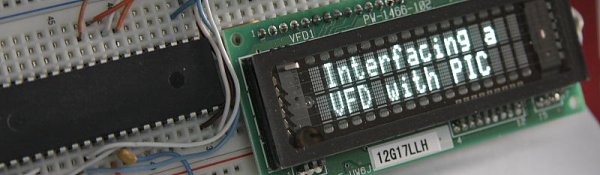
Introducing PIC Microcontroller projects

$
0
0

PIC Microcontroller

Development Tools History

PIC microcontroller Development Board

(Completed on 2006-10-28)

The ultimate PIC Microcontroller development board. After years of programming PIC microcontroller, I have finally design my super development board to program PIC microcontroller firmware. The automatic programming mode select and the 40 bits LED light bar display have ease my programming process and increase debugging speed by 10 times. I can easily do troubleshooting because of the 40 bits LED display. The LED allows display for 5 bytes of variables using only 3 bits of any output port. I used to allocate PORTD to display one byte of the memory. Debugging used to be slow and tedious. This board also features automatic select to programming mode when the board is powered down. This means that there is no need to do manual switching. The ICSP interface allows the firmware to be loaded to the microcontroller without inserting/removing IC chip.

Features

-Development for 18, 28, 40 pins DIP PIC microcontroller

-Serial Communication RS232, with Tx/Rx transmission activities indicator.

-Changeable microcontroller Crystal Clock

-ICSP programming pins

-Automatic switch to programming mode when board power is turned off.

-Proper labels and easy to view LED bar display, buffered from all the ports. Output pins from all the ports.

-Serial to parallel data latching to extend more output bits from 3 output pins. Output pins with easy to view LED bar display.

-Adjustable dc-dc power supply using LM2576-ADJ IC to cater for 5V and 3.3V power supply system.

-Features 74HC series logic family and Max232 IC for operating on 3.3V power supply. (see logic family selection guide)

-Fuse protection.

For more information for extending microcontroller I/O (input/output) ports using “serial to parrallel” or “parallel to serial” circuit, you can refer to More Circuit Schematic.


The development board uses the following logic IC:

74HC595, serial to parallel with output latched

74HC244, octal logic buffer

MAX232, RS232 to TTL tranceiver

LM2576-adj, DC-DC voltage regulator


For more information on how to select logic family, see “Logic Selection Guide” from Texas Instrument.

Introduction: AUP, CBT-C, CB3T/Q, SSTU, VME, AUC, SSTV, GTLP, Little Logic, AVC, TVC, ALVT, CBTLV, ALVC, CBT, LVC, LV

Mature: AHC/AHCT, LVT-A, ABT, FCT, AC/ACT, HC/HCT, BCT, CD4000

Obsolescence: 74ALS, 74F, 74AS, 74LS, 74S, 74xx (oldest)Introducing PIC Microcontroller projects

PIC microcontroller Programmer
(Completed in the year 2005)

My first own build programmer system. Spent quite a lot of time designing and fabricating the plastic box chassis. It works, but I never really work much with it after I brought myself a commercial version.

Microcontroller DIP IC Adaptor

(Completed in the year 2002-05-xx)

This is a interface board for fitting various model of PIC microcontroller to the programmer. The programming pins numer is different for every PIC microcontroller model. This interface board eliminate the need to build a new programmer board for different PIC microcontroller model.

PIC Programmer & Development board

(Completed in the year 2002-05-xx)

This board is design to be function as a multi purpose PIC microcontroller development board. I have build specially to trial run the microcontroller firmware I wrote. Bi-directional digital buffer are used, to protect the microcontroller from external device during interfacing. After working with microcontroller for some time, I find that this buffer interface is not necessary. Microcontroller I/O ports do not damage easily. When interfacing microcontroller with high powered or unknown devices, opto-coupler can be used instead. Opto-coupler provides maximum isolation as well as protection between the microcontroller and other devices.

Attached to the main PCB is a smaller PCB board. It consist of a MAX232 converting computer RS232 to microcontroller TTL serial signal. This small board also include a charge pump circuit that generate 12V from a 5V source for the purpose of programming the PIC microcontroller. This programmer design “Toolkit TK3 PIC programmer” was taken reference from my favourite hobby magazine “Everyday Practical Electronics”.

(Completed in the year 2002-05-xx)
Input switches and Output LED test board interface. It is very useful when doing microcontroller project, because it can help to indicate if the firmware is running correctly inside the microcontroller. A must have kit when doing digital project.
PIC microcontroller selection references.
table updated in 26 May 2007
Number of Pin     PIC16F series     PIC18F series alternative
14     PIC16F688
18
(all  models, not pin compatible)
PIC16F88, PIC16F648a, PIC16F628a, PIC16F84a     PIC18F1320, PIC18F1220, PIC18F1330, PIC18F1230
28     PIC16F876a     PIC18F2620, PIC18F2525, PIC18F2420
40     PIC16F877a     PIC18F4620, PIC18F4525, PIC18F4420
40     USB supported Best features     PIC18F4550

Specification ICSP pin out Vcap pin out OSC pin out UART fixed pin out  Preferred I/O use Comment
Microcontroller part no. Package /Pin no. Volt !MCLR Vdd (+) Vss (-) PGD1 PGC1 PGD2 PGC2 PGD3 PGC3 Vcap DisVreg OSC1 OSC2 TX1 RX1 TX2 RX2 Input Output  
                                             
64 pins                                            
PIC24HJ256GP206A TQFP/64 3V – 3.6V 7 10
19
26
38
57
9
20
25
41
18 17 47 48 16 15 56 39 40 33 34 32 31
44 pins
PIC24FJ64GA004 TQFP/44 2V – 3.6V 18 17
28
40
16
29
39
21 22 8 9 41 42 7 6 30 31             EEPROM
PIC24FJ64GA104 TQFP/44 2V – 3.6V 18 17
28
40
16
29
39
21 22 8 9 41 42 7 6 30 31
PIC24FJ64GB004 TQFP/44 2V – 3.6V 18 17
28
40
16
29
39
21 22 8 9 19 20 7 6 30 31              
PIC24F32KA304 TQFP/44 1.8V – 5.5V 18 17
28
40
16
29
39
21 22 8 9 41 42 7   30 31 3 2 21 22      
PIC24FJ32MC104 TQFP/44 3V – 3.6V 18 17
28
40
6
16
29
39
21 22 19 20 33 34 7   30 31              
dsPIC30F2023 TQFP/44 3V – 5.5V 18 7
17
29
40
6
17
30
39
44 1 34 35 41 42     32 33 20 15 34 35      
dsPIC33FJ128GP804 TQFP/44 3V – 3.6V 18 17
28
40
16
29
39
21 22 8 9 41 42 7 6 30 31              No EEPROM
dsPIC33FJ32MC104 TQFP/44 3V – 3.6V                                        
dsPIC33FJ128MC804 TQFP/44 3V – 3.6V 18 17
28
40
6
16
29
39
21 22 8 9 41 42 7   30 31              
dsPIC33FJ16GS504 TQFP/44 3V – 3.6V 18 17
29
40
6
16
30
39
44 1 34 35 41 42 7   32 33
dsPIC33EP128GM304         8x input capture, 12x PWM, 4x UART, 3x SPI, 18x ADC
Microcontroller part no. Package /Pin no. Volt !MCLR Vdd (+) Vss (-) PGD1 PGC1 PGD2 PGC2 PGD3 PGC3 Vcap DisVreg OSC1 OSC2 TX1 RX1 TX2 RX2 Input Output  
                                             
28 pins                                            
PIC24F16KL402 SOIC/28 1.8V – 3.6V 1 13
28
8
27
4 5 21 22 14 15     9 10 16 6 4 5      
PIC24F32KA302 SOIC/28 1.8V – 5.5V 1 13
28
8
27
4 5 21 22 14 15     9 10 16 6 4 5      
PIC24FJ64GA002 SOIC/28 2V – 3.6V 1 13
28
8
27
4 5 21 22 14 15 20 19 9 10              EEPROM
PIC24FJ64GA102 SOIC/28 2V – 3.6V 1 13
28
8
27
4 5 21 22 14 15 20 19 9 10
PIC24FJ64GB002 SOIC/28 2V – 3.6V 1 13
28
8
27
4 5 21 22     20 19 9 10
PIC24FJ32MC102 SOIC/28 3V – 3.6V 1 13
28
19
27
4 5 2 3 11 12 20   9 10              
dsPIC30F2010 SOIC/28 2.5V – 5.5V 1 13
20
28
8
19
27
17 18             9 10  17 18 11 12      
dsPIC30F2020 SOIC/28 3V – 5.5V 1 13
20
28
8
19
27
17 18 11 12 14 15     9 10 17 18 11 12      
dsPIC30F2012 SOIC/28 2.5V – 5.5V 1 13
20
28
8
19
27
17 18 9 10 17 18 11 12
dsPIC30F3010 SOIC/28 2.5V – 5.5V 1 13
20
28
8
19
27
17 18             9 10 17 18 11 12      
dsPIC30F3013 SOIC/28 2.5V – 5.5V 1 13
20
28
8
19
27
17 18             9 10 17 18 21
11
22
12
     
dsPIC30F4012 SOIC/28 2.5V – 5.5V 1 13
20
28
8
19
27
17 18             9 10 17 18 11 12      
dsPIC33FJ32GP102 SOIC/28 3V – 3.6V 1 13
28
8
19
27
4 5 2 3 11 12 20   9 10              
dsPIC33FJ128GP802 SOIC/28 3V – 3.6V 1 13
28
8
19
27
4 5 21 22 14 15 20   9 10              
dsPIC33FJ128MC802 SOIC/28 3V – 3.6V 1 13
28
8
19
27
4 5 21 22 14 15 20   9 10              
dsPIC33FJ09GS302 SOIC/28 3V – 3.6V 1 13
28
8
19
27
17 18 11 12 14 15 20   9 10              
dsPIC33FJ16GS502 SOIC/28 3V – 3.6V 1 13
28
8
19
27
17 18 11 12 14 15 20   9 10              
Microcontroller part no. Package /Pin no. Volt !MCLR Vdd (+) Vss (-) PGD1 PGC1 PGD2 PGC2 PGD3 PGC3 Vcap DisVreg OSC1 OSC2 TX1 RX1 TX2 RX2 Input Output  
                                             
20pins
dsPIC33FJ12MC201 Quite mature product.
18pins
dsPIC30F3012 SOIC/18 2.5V – 5.5V 1 14, 18
13, 17 11 12 6 7 11 12 Mid number of I/O, operating at 5V.
14pins
PIC24F04KA200 TSSOP/14 1.8V – 3.6V 1 14 13 3 2 6 7 4 5 11 12 10 EEPROM
Code Protection
Warning!!!-> very very little memory, 4K only. Note enough for comfortable protocol processing. Please take note.
PIC24F08KL200  1.8V – 3.6V 1 14 13 3 2 6 7 4 5 11 12 10 Compatiable to PIC24F04KA200, with more memory.
Face problem dealing with UART on its revision A0
8 pins                                            
PIC12F1840 SOIC/8 1.8V – 5.5V 4 1 8 7 6             2 3 7 6         UART
PIC12F1822 SOIC/8 1.8V – 5.5V 4 1 8 7 6             2 3 7 6         UART
PIC12HV615 SOIC/8 2-15V 4 1 8 7 6             2 3             2-15V
PIC12F508 SOIC/8 2-5.5V 4 1 8 7 6             2 3             low cost
Microcontroller part no. Package /Pin no. Volt !MCLR Vdd (+) Vss (-) PGD1 PGC1 PGD2 PGC2 PGD3 PGC3 Vcap DisVreg OSC1 OSC2 TX1 RX1 TX2 RX2 Input Output  
                                             
6 pins                                            
PIC10F322 SOT23/6 1.8V – 5.5V 6 5 2 1 3             3           4, 6 1, 3 most powerful
PIC10F200 SOT23/6 2V – 5.5V 6 5 2 1 3                         4, 6 1, 3 low cost

Legend

Product Identification System (example)

dsPIC 33 FJ 16 MC1 02 T E / SP – XXX
—– — — — — — – –   —
   —
1     2  3  4  5   6  7 8   9    10

1 – Microchip Trademark
2 – Architecture
    10 –
12 –
16 –
18 –
24 – 16-bit Microcontroller
30 –
33 – 16-bit Digital Signal Controller
3 – Flash Memory Family
    FJ – Flash program memory, 3.3V
F  – Flash
EP – Enhanced Performance
HJ – Flash program memory, 3.3V, High-speed
4 – Program Memory Size (Kbyte)
5 – Product Group
    GP? – General Purpose family
MC1 – Motor Control family
GS? – Switch Mode Power Supply (SMPS) family
6 – Pin Count
    01 – 18-pin and 20-pin
02 – 28-pin and 32-pin
04 – 44-pin
06 – 64-pin
10 – 100-pin
7 – Tape and Reel Flag
– Standard packaging (tube or tray)
    T  – Tape and Reel
8 – Temperature Range
    I  – -40ºC to +85ºC  (Industrial)
E  – -40ºC to +125ºC (Extended)
H  – -40ºC to +150ºC (High)
9 – Package
    P  – PDIP  (Plastic Dual In-Line)
SS – SSOP  (Plastic Shrink Small Outline)
SP – SPDIP (Shinny Plastic Dual In-Line)
SO – SOIC  (Plastic Small Outline)
SN – SOIC  (8-Lead)
SL – SOIC
ML – QFN   (Plastic Quad, No Lead)
MR – QFN   (Thin Quad Flatpack)
MG – QFN   (Micro Lead Frame)
MM – QFN-S   (Plastic Quad, No Lead)
MV – UQFN
PT – TQFP  (Plastic Thin Quad Flatpack)
PF – TQFP  (Plastic Thin Quad Flatpack, 14x14mm)
ST – TSSOP
TL – VTLA  (Very Thin Leadless Array)
MF – Micro Lead Frame (DFN)
MC – DFN
OT – SOT-23
10- Pattern
QTP, SQTP, Code or Special Requirements


It is a headache trying to maximise the pin compatibility with a wider range of microcontrollers and applications,
such that firmware changes can be minimised.
The following are suggesting pins use for reference, base on the following microcontroller:

Microcontroller part no. Package /Pin no. Volt !MCLR Vdd (+) Vss (-) PGD PGC OSC1 OSC2 TX1 RX1 TX1
Ctrl
TX2 RX2 TX2
Ctrl
Output
Indicators
Input
Switch
Input
Analog
I/O PWM  
                                     
44 pins                                    
PIC24FJ64GA002 TQFP/44 2V – 3.6V 18 17
28
40
16
29
39
21 22 30 31 44 1 3 8 9 10 33, 34, 41 21, 22 19,20 15, 14, 11, 10          
PIC24FJ64GA002 SOIC/28 2V – 3.6V 1 13
28
8
27
4 5 9 10 17 18 16 21
11
22
12
23 11, 12, 14 4, 5 2,3 26, 25, 24, 23        
PIC12F1840 4 1 8 7 6 2 3 7 6         7, 6 4, 7, 6 3, 5          
PIC10F322 6 5 2 1 3                 1, 3 6, 1, 3 1, 3, 4 4 1, 3      

PIC10F206 Microcontroller Schematic

source code:
2011-11-30 mini RGB microcontroller (c).zip
2011-11-30 mini RGB microcontroller (asm).zip

Microchip MPLAB microcontroller startup troubleshooting guide.2009-10-08Getting my “hello world” firmware loaded into my new hardware design pose the most difficult part of the process. Time consuming doing debugging, and it can takes from half a day to two. The most difficult part, to spent those precious engineering time in debugging. Debugging what I thought I should be good in since I have done so many microcontroller project. Till this day, I still have the problem every time I start microcontroller project after a few months break. The reason I have this guide written. To provide myself possible solution, that can help me, if I encounter the same issue again.


Setting up the environment for project using MPLAB v8.701) Create a project folder. Open the MPLAB IDE software.

2) Open a new Project. Project>New… and enter in a name for the project.

3) Select the microcontroller that is use in the project. Configure>Select Device… and select the microcontroller for your project.

4) Check the configuration mode ‘Release’. Project>Build Configuration>Release

5) Select the correct toolsuite for your project. Project>Select Language Toolsuite… for typical C lanaguage implementation, choose “MPLAB” C30 C Complier (pic-30-gcc.exe) v3.24

6) Add in the search path for your microcontroller’s header file. Project>Build Options…>Project>Directories>Include Search Path, choose add to add in the directory that contains the microcontroller’s header files. For my example, the header is located in the directory “C:\Program Files (x86)\Microchip\MPLAB C30\support\dsPIC33F\h”

7) Add in or create all the *.c & *.h files, to start your programming.


I use PICkit2 most of the time, because it is a small and compact programmer. Today, I tried out PICkit3. Well I am quite impress with the changes from PICkit2. I hope to get that one day. As for this article, the error messages is meant for PICkit2 use on the IDE Mplab version 8.36.I do not have much problem doing the compilation of my C programs. The frustration comes during the loading of my hex codes into my newly design prototype circuit. Most of the time is due to human error, because my prototype board are mainly hand soldered, pin by pin.On the left is the typical error message I encounter. I am scare of them to be frank. I see them almost every time.


Initialisation of PICkit2 when connected to MplabInitializing PICkit 2 version 0.0.3.63
Found PICkit 2 – Operating System Version 2.32.0
Target power not detected – Powering from PICkit 2 ( 3.30V)
PKWarn0003: Unexpected device ID:  Please verify that a PIC24FJ32GA004 is correctly installed in the application.  (Expected ID = 0x44D0000, ID Read = 0x0)
PICkit 2 Ready
Every time when I press the shortcut key Alt+G, G to program the controller, PICkit will attempt to read the device ID of the microcontroller. The microcontroller used in this example is PIC24FJ32GA004.As you can see in the error on the right. PICkit is expecting the microcontroller with device ID 0x44D0000. The read by PICkit detects a ID of 0x0. In fact this same error is identical as if the PICkit programmer is not inserted to the ICSP programming pins at all.This is a hard evident that the microcontroller is not wired properly or evenly not wired at all.


Error Encounter using PICkit2 version 2.63, MPLAB version 8.36Programming Target (10/8/2009  4:37:06 PM)
PKWarn0003: Unexpected device ID:  Please verify that a PIC24FJ32GA004 is correctly installed in the application.  (Expected ID = 0x44D0000, ID Read = 0x0)
Erasing Target
Programming Program Memory (0x0 – 0x23FF)
PE Error: Using ICSP
Verifying Program Memory (0x0 – 0x23FF)
PE Error: Using ICSP
PK2Error0027:  Failed verify (Address = 0x0 – Expected Value 0x40200 – Value Read 0x0)
PICkit 2 Ready

Introducing PIC Microcontroller projects schematich 1) The first thing to check if your hardware. It is most of the time the source of the problem. Check if the ICSP programming pins are wired correctly

ICSP pin out

Pin 1: !MCLR

Pin 2: Vdd (3.3V or 5V, depends on the device)

Pin 3: Vss (ground)

Pin 4: PGD (data line)

Pin 5: PGC (clocking line)

Pin 6: unused

Attached on the left is the basic schematic of the microcontroller PIC24FJ32GA004 if your wiring is exactly the same as what is shown, PICkit2 should be able to load the hex file into your controller without any problem.

An advise to you, don’t assume that your wiring is correct. Check 2 or more times to ensure. This is often one of my major mistake make. The schematic is typically correct, but because of the confident doing many similar project, the checking is often the lacking part.

For PIC24FJ series controller, there is a pin Vcap & DISVREG. Make sure that there is the capacitor there. !MCLR pin to be pull up to Vdd using a resistor about 10kohm.


For more detail: Introducing PIC Microcontroller projects

The post Introducing PIC Microcontroller projects appeared first on PIC Microcontroller.

PIC based WWVB clock

$
0
0

Introduction

There are many DIY versions of WWVB clock designs available on the web. Commercial “atomic” clocks are inexpensive and widely available, but I wanted to try my hand at designing one to gain insight into WWVB reception and to learn a little about programming a PIC microcontroller. My version is not the simplest available, but it works well and I think it offers a few unique features.PIC based WWVB clock

WWVB Clock Features

  • Receives time broadcast from WWVB, Fort Collins, CO
  • Auto synchronizes internal time with WWVB time
  • Maintains local time when WWVB signal is lost
  • This version is for Pacific Standard Time, and auto detects/corrects for Daylignt Savings Time
  • 6-digit display of hours, minutes, seconds using 1″ seven-segment LED displays
  • WWVB sync indicator
  • Time display is in 12-hour format
  • PIC 16F628 microcontroller
  • Software written in C
  • All tools (schematic editor, C compiler, PCB layout software, PIC programmer are free and available for download on the web.

A complete description and specification for the WWVB broadcasts is available (free), document # 432, attf.nist.gov/general/pdf/1383.pdf The WWVB signal is broadcast as a 60 kHz carrier that is AM modulated with a time code frame that is updated once per minute. The data rate is one bit per second. Along with time code information, the data frame also contains synchronization bits, calendar data, UT1 correction, leap year, and leap second data. The clock design presented here only decodes the time data and daylight savings correction data. The software could easily be modified to include decoding of the other information bits, if desired. The the low frequency WWVB signal strength is weak and reception can be problematic. Signal acquisition time is variable, depending on location and atmospheric conditions. Reception is usually best at night between 8pm – 4am. To use the clock, just apply power and wait for reception of the WWVB signal. When the clock receives a complete error-free frame of data, it will automatically reset the display to show the correct time. After the initial time correction, the clock will maintain time even if WWVB reception is lost.

Hardware Description

As shown in the schematic (pdf format), the heart of the clock is a PIC 16F628 microcontroller running at 4 MHz. Decoded time data is sequentially output from the microcontroller (RA0 – RA3) to the 7-segment decoder/drivers on a 4-bit data bus. The data is output sequentially as seconds, 10s of seconds, minutes, 10s of minutes, hours, and 10s of hours. The microcontroller outputs (RB1, RB2, RB3) route a 10 uSec stroble pulse from RB4 out to each of the 7-segment decoder/drivers at the proper time to latch the data bus values. Seconds and 10s of seconds display values are updated once per second. Minutes, 10s of minutes, hours, and 10s of hours are updated once per minute. The display consists of 1″ red-orange LED 7-segment displays. The decimal points on the displays are used to form colons to separate the seconds, minutes, and hours. The 10s of seconds and 10s of minutes displays are mounted upside down to form the upper colon dots. The WWVB receiver is a C-MAX model CMMR-6 and is available from Digi-Key (www.digikey.com) as part # 561-1014-ND complete with loopstick antenna. Data output from the receiver is sampled by the microcontroller on RB0.PIC based WWVB clock schematich

Construction

I have built two of these clocks, one using point-to-point wiring and one using a pcb. Both versions perform well. Just keep the receiver away from noise sources and the wire / trace lengths short to minimize inductance. I found that the receiver is also sensitive to magnetic fields produced by power supplies. I used a 9V, 200 mA “wall-wart” instead of an internal power supply to eliminate this problem.

My pcb was designed using Free PCB software www.freepcb.com. The artwork contains both the main board and the display board on a single layout to save the cost of two separate boards. I purchased the pcb from www.4pcb.com by sending them the gerber files and using their “bare-bones” process. The “bare-bones” process does not include solder mask nor silk-screen. Just cut off the display board from the main board and mount it at a right angle to the main board and wire them together using the pads provided.

For more detail: PIC based WWVB clock

The post PIC based WWVB clock appeared first on PIC Microcontroller.

Viewing all 202 articles
Browse latest View live


Latest Images

<script src="https://jsc.adskeeper.com/r/s/rssing.com.1596347.js" async> </script>